Quran player: speed, repeat and sleep timer
Control Quran playback in Listen: speed 0.25× to 2×, five repeat modes, a sleep timer, read along in the mushaf, Up next and lock-screen controls.
On this page
Quran Gallery Listen (qurangallery.com/listen) plays everything in one player at the bottom of the screen. It stays there while you browse, and it keeps playing when you move to another Quran Gallery app. The player has a sleep timer (on radio too), repeat for a surah (and, on recordings timed verse by verse, for one ayah or a range of ayat), speeds from 0.25× to 2×, lock-screen controls, save for offline and download as an MP3 file; favorites and playlists stay on your device without an account. The Listen player page answers each of these in a few lines.
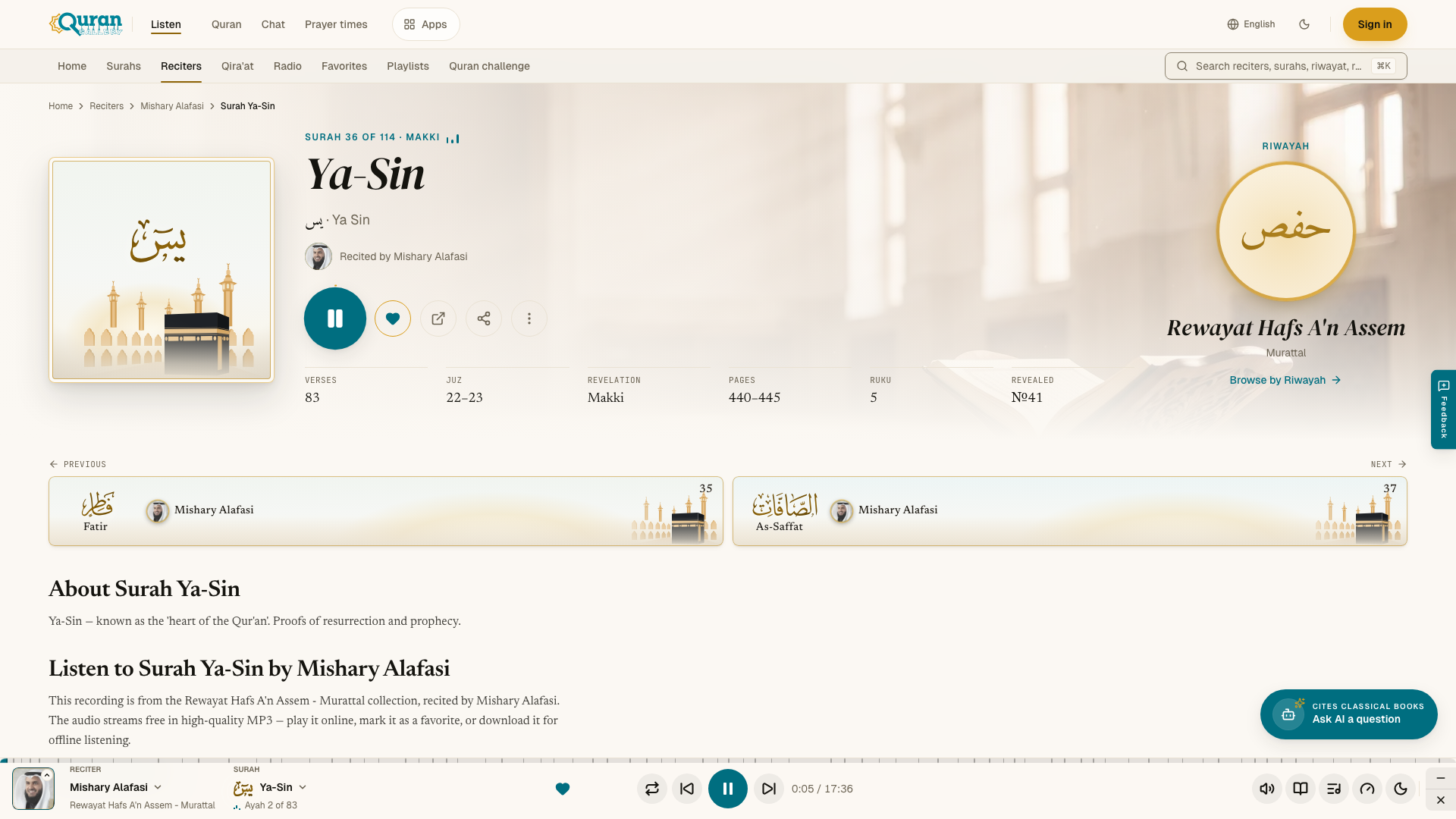
The player bar
On a computer or tablet the player is a bar across the bottom of the screen.
On the left are the reciter and the surah.
- Press the reciter to switch to another voice for the same surah. If the new recording is timed verse by verse, playback continues from the same āyah. Otherwise it continues from about the same point.
- Press the surah to play another surah by the same reciter.
- The line under the surah shows Ayah and the verse that is playing, when the recording is timed verse by verse.
- The heart saves the recording to your favorites.
In the middle are Repeat, Previous surah, Play or Pause, Next surah, and the time.
Along the top edge is the seek bar. Drag it to move through the surah. On recordings timed verse by verse, small marks show each āyah — point at one to see its number, and let go near a mark to start at that āyah.
On the right, in order:
| Button | What it does |
|---|---|
| Volume | Mute or unmute. Move the pointer over it, or tab to it, to show the volume slider. |
| Read along (book) | Shows the pages of the mushaf with the playing āyah marked. |
| Up next (list) | Shows what plays next, your playlists, and Download, Share and Open page. |
| Playback speed (gauge) | Choose a speed. A small badge shows the speed when it is not Normal. |
| Sleep timer (moon) | Stop playback after a time. A badge shows the time left. |
| Minimize player (–) | Hides the bar. A small button at the bottom of the page keeps showing what is playing — press it to bring the bar back. |
| Close player (×) | Stops playback and closes the player. Listen keeps your place. |
Only one panel opens at a time, and the bar stays usable while it is open.
On a phone
On a phone, a small player sits above the bottom tab bar. It shows the reciter’s face, the surah and the reciter, a heart and a play button. Tap it to open the full player.
The full player shows the reciter, the surah, the seek bar and the main buttons. Under them are Up next, Read along, Download and Share, then Playback speed, Sleep timer and the volume. At the bottom are Minimize player and Close player.
To close the full player, tap the handle at the top, drag the sheet down, or press Esc.
After you close the player, a Continue listening strip appears. Tap it to resume, or swipe it sideways to hide it.
Repeat
Press Repeat to choose how playback repeats:
| Mode | What repeats |
|---|---|
| Off | Nothing. Playback moves on. |
| Surah | The current surah, again and again. |
| All | All the surahs, starting again after the last one. |
| Ayah | One āyah you choose. |
| Range | The āyāt from From verse to To verse. |
Ayah and Range work on recordings timed verse by verse. They help with memorization:
- Surah — choose which surah.
- Play count — how many times to play: 1×, 3×, 5×, 7×, 10× or ∞ (without end).
- Repeat each verse (Range only) — how many times each āyah plays before the next one.
- Delay between plays (seconds) — a pause after each play, so you can repeat after the reciter.
Press Start playing. While a repeat is on, a label in the player names it. Press the label to stop repeating.
Speed
Playback speed offers 0.25×, 0.5×, 0.75×, Normal, 1.25×, 1.5×, 1.75× and 2×. Custom opens a slider for any speed from 0.25× to 2×.
Sleep timer
Sleep timer stops playback after 15 minutes, 30 minutes, 1 hour, or at the End of surah. Custom sets any time from 5 to 180 minutes — press Start timer. Choose Off to cancel. While the timer runs, a label in the player shows the time left; press it to cancel.
Read along
Read along opens the printed mushaf, with tajweed colors. It opens at the playing surah and keeps the playing āyah marked and in view. On recordings timed verse by verse, tap an āyah to jump to it. If you scroll away, the page stops following; scroll back and it follows again. The recitation keeps playing while the mushaf is open.
Up next

Up next shows what plays after the current surah.
- Playing from names where the line-up comes from, such as a reciter, a collection or a playlist.
- Added by you lists what you added with Play next or Add to queue. Drag a row, or use the arrow keys, to reorder it. Clear empties the list.
- Shuffle mixes the rest of the line-up. Press Undo to put it back.
- Save keeps the line-up as a new playlist. See Playlists.
- The Playlists tab lists your playlists. While a radio station plays, the Stations tab lists other stations.
- At the bottom: Download (surahs and tafsir), Share and Open page.
Keyboard shortcuts
| Key | Action |
|---|---|
| Space or K | Play or pause |
| ← / → | Back or forward 15 seconds |
| M | Mute or unmute |
| N / P | Next or previous surah |
The shortcuts do not work while you type in a box. The media keys on your keyboard and the controls on your phone’s lock screen also work.
Your place is kept
Listen remembers what you were playing, where you stopped, your speed, volume and the Up next list — even after you close the tab. When you come back, press play to continue. If you stopped in the first 10 seconds, the surah starts from the beginning.
Player capabilities
What the player does, in one place:
- Speed. 0.25× to 2×, in presets or with a custom slider.
- Sleep timer. 15 minutes, 30 minutes, 1 hour, End of surah, or a custom time from 5 to 180 minutes. It also works on live radio, except End of surah.
- Repeat. Off, Surah, All, Ayah and Range. Ayah and Range need a recording timed verse by verse.
- Resume. Listen remembers the recording and your position. If you stopped within the first 10 seconds, the surah starts from the beginning.
- Up next. A line-up you can reorder, shuffle, clear and save as a playlist, with Play next and Add to queue on any recording.
- Listening history. Your 50 most recent recordings, newest first. See Favorites & history.
- Background and lock-screen controls. Play, pause, seek, back or forward 15 seconds, and next or previous surah work from your lock screen, notification shade or keyboard media keys, through the browser’s Media Session.
- Save for offline. Choose Save for offline in a recording’s ⋯ menu on a reciter, surah, collection, favorites or history page. Listen asks first and shows how much space it will use on your device. Saved recordings are listed on the Saved offline page at qurangallery.com/listen/downloads, where you can play or remove them. Saving needs a browser that supports service workers.
- Download. Download in the same menu or in Up next gives you an MP3 file instead.
Radio in the player
A radio station has no seek bar, no repeat, no speed and no download, because it is live. The sleep timer, volume and Share still work. See Live radio.