Quran companion mode
Read a mushaf page side-by-side with the chat and ask questions about the verses in front of you.
On this page
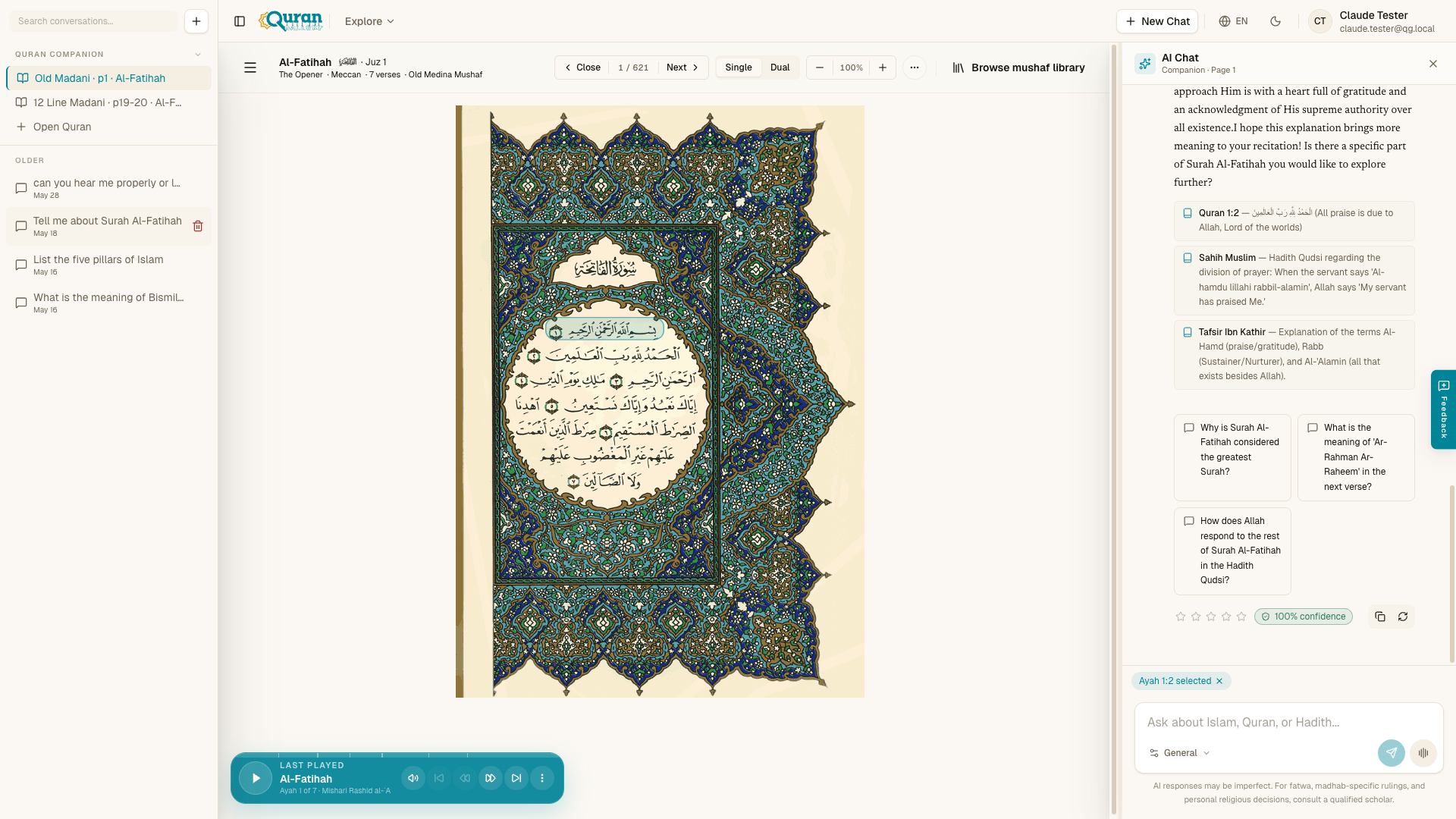
Companion mode puts a mushaf page next to the chat, so you can read and ask
about what’s in front of you without switching apps. Open it at qurangallery.com/chat/companion.
Choosing a mushaf
The companion landing page opens on Choose a mushaf — a gallery of mushaf editions (Hafs, Warsh, Qaloon, Douri, Shubah, Urdu, and Tajweed). Pick the edition you want to read before the split-screen opens:
- Search editions by name, riwaya, or publisher with the search box.
- Filter by riwaya using the chips above the gallery (All, then each riwaya present).
- If you’ve read in companion mode before, a Continue reading strip near the top lets you jump back to where you left off in an edition.
Select an edition to open it in the split-screen reader.
Reading alongside the chat
In companion mode the screen is split: the mushaf page on one side and the chat on the other. As you read, you can ask the chatbot about the verses on the page — a word, a phrase, the meaning of an ayah, or the context of the passage — and your answers come with references, the same as a normal chat.
Opening a specific page range
Companion mode is page-aware. A page range opens at a URL like:
qurangallery.com/chat/companion/<mushafSlug>/page/<range><mushafSlug>selects which mushaf edition you’re reading.<range>is the page you want in view. Use a single page like5, or a two-page spread written with a hyphen like5-6.
This lets you jump straight to the page you’re studying and keep the chat focused on it.
Asking about the page
Once a page is open, ask naturally — for example, “What is this verse about?” or “Explain the word here.” Because the page is in view beside the chat, you can read the answer and check it against the text immediately. As always, the responses are guidance: for fatwa or madhab-specific rulings, confirm with a qualified scholar.
Asking about one verse
Tap any verse on the page to focus the chat on it. A context chip appears
above the message box showing the verse you picked (for example, Al-Baqarah 2:255) with the note Context for your next question. Your next
question is answered about that verse specifically. Select the ✕ on the chip
to clear the verse and go back to asking about the whole page.
Suggested questions for the page
When the chat side is empty, companion mode offers one-tap suggested questions so you don’t have to phrase things yourself. Which ones appear depends on whether a verse is selected:
| Suggestion | Shown | Asks for |
|---|---|---|
Explain {verse} | When a verse is selected | The verse’s meaning and the context of its revelation. |
Tafsir of {verse} | When a verse is selected | The classical tafsir, with key scholarly views. |
Overview of page {n} | Always | Which surahs and verses are on the page, and what they cover. |
| Main themes on this page | Always | The main themes across the page’s verses. |
| Lessons & reflections | Always | Key lessons and reflections to take from the page. |
Tap one to drop it into the message box, then send it.
Companion keeps its own history
Companion reading sessions are saved separately from your regular chats. Your ordinary conversations and your companion sessions each have their own list in the sidebar, and the Continue reading strip on the landing page only tracks companion sessions — so studying a mushaf never clutters your normal chat history.