Set a password (Google / Quran.com users)
How to add a password to an account that was created through Google or Quran.com sign-in.
On this page
If your Quran Gallery account was created by Continue with Google or Continue with Quran.com, you’ve never had to type a password. That’s perfectly fine — those sign-in methods will keep working forever — but you may want to add one anyway:
- as a backup so you don’t lose access if your Google/Quran.com account is unavailable;
- so you can enable two-factor authentication, which requires having a password set; or
- so you can sign in on a device that doesn’t have Google/Quran.com handy.
This page walks through that one-time setup. Once it’s done, the regular Change password flow takes over.
How to set a password for the first time
- Sign in to accounts.qurangallery.com with Google or Quran.com.
- Open Settings.
- In the Login methods card, find the Email & Password row. It will show Not connected.
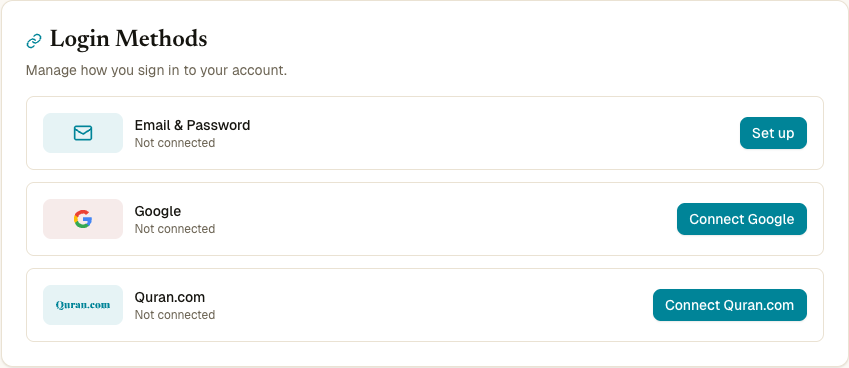
- Click Set up on the Email & Password row, or scroll down to the Security card where the same flow appears as Set a Password → Send Verification Code.
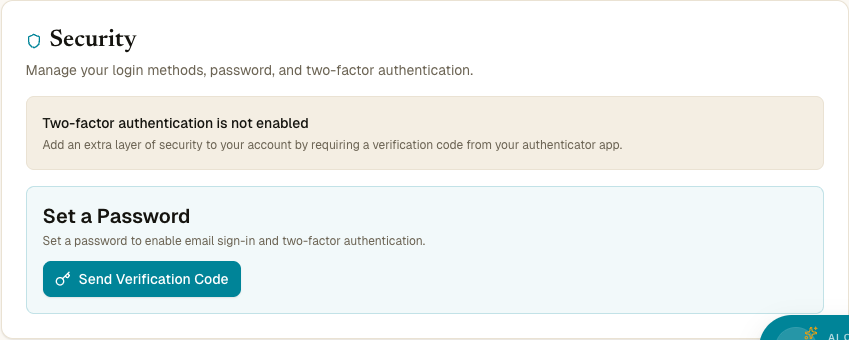
Then walk through the three sub-steps below.
Sub-step 1 — Receive a verification code
When you click Set up, Quran Gallery emails a 6-digit code to your account email. The subject line is “Your verification code — Quran Gallery”. The code is valid for 10 minutes.
We send a code (not a magic link) because the code path lets us verify it on the same device you’re already signed in on — no tab juggling.
Sub-step 2 — Enter the code
A code-entry panel appears on the page with a 6-digit input field. Type or paste the code from the email; pasting fills all six characters at once.
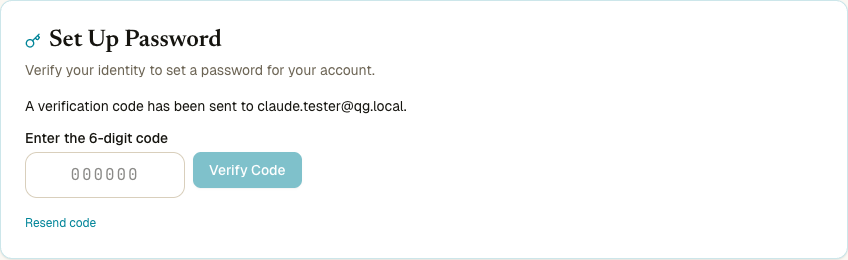
If the code:
- Matches — the panel turns green and shows fields for setting your new password.
- Doesn’t match — you’ll see “Invalid code” and a remaining-attempts counter. You get 5 attempts before the code is locked out.
- Has expired (10 minutes have passed) — click Resend code to get a fresh one. There’s a 60-second cooldown between resends.
Sub-step 3 — Choose your password
Once the code is verified, a green confirmation banner replaces the code input and two password fields appear:
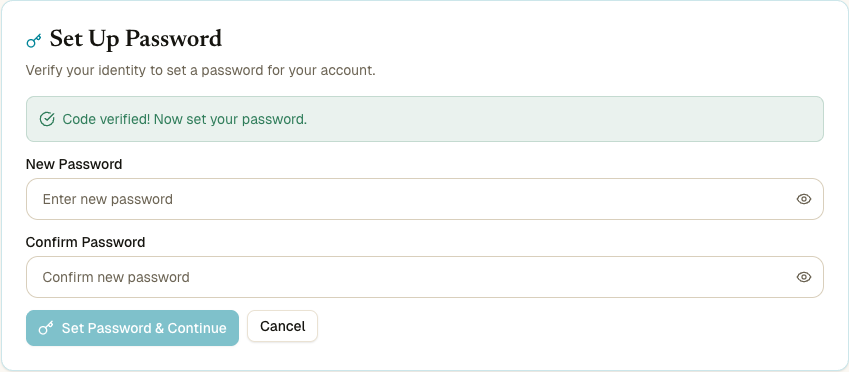
- New Password — at least 8 characters.
- Confirm Password — must match.
Click Set Password. You’ll see a green confirmation, and your account now has all three login methods available: Google (or Quran.com), and Email & Password. You can sign out and sign back in with any of them.
What if I keep getting “Invalid code”?
After 5 wrong attempts, password setup is locked out on a sliding tier:
- First lockout: 5 minutes.
- Second: 15 minutes.
- Third: 1 hour.
- Fourth and beyond: 1 day.
The page shows how long you have to wait. The tier resets after a successful setup.
This protection is per-account, not per-IP, so trying a different network won’t unlock you faster — you just have to wait out the timer.
Why password setup needs email verification
Your Google or Quran.com sign-in vouched for your email at the time you created the account, but anything could have changed since: the email could have been transferred, your Google account could be compromised, you could be signing in from a shared device. Asking you to prove you still own the inbox at the moment of setting a password closes that window. It’s the same logic as the verification email you got when you first signed up with a password.
After setup — what changes
- All three of your login methods (Google, Quran.com if connected, Email & Password) sign in to the same account. No duplicates.
- You can now turn on two-factor authentication.
- Future password changes go through the simpler Change password dialog — no email codes needed because you’ll be entering your current password.
- You can disconnect Google or Quran.com without locking yourself out, because the password remains. See Connected accounts.