Create an account
How to register a new Quran Gallery account with email and password, and what each field requires.
On this page
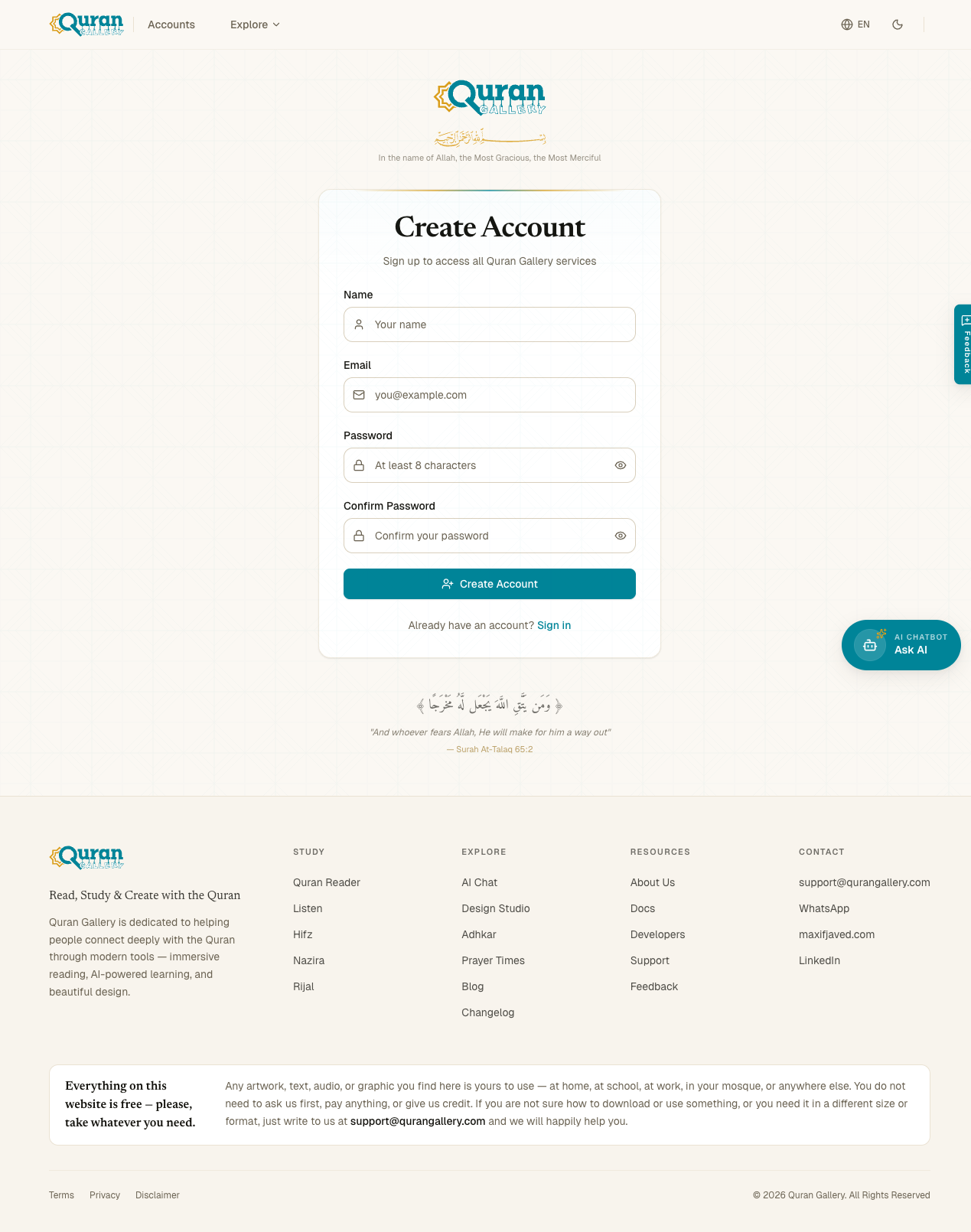
The signup page asks for the smallest set of details we can: a display name, an email address, and a password. You can also skip the form entirely and create an account by signing in with Google or Quran.com — see Sign in.
How to reach the signup page
Open accounts.qurangallery.com/signup, or click Sign Up at the bottom of the sign-in page.
Filling out the form
| Field | What to put |
|---|---|
| Name | The name you want to be greeted by. Shown in the topbar, on shared posts, etc. |
| An address you can read mail at right now — you’ll need to click a verification link. | |
| Password | At least 8 characters. No upper-bound you’ll hit in practice. No required character mix. |
| Confirm password | Must match the password field exactly. Catches typos before you submit. |
You may also see a Cloudflare Turnstile widget (“Verifying you’re human”). It usually resolves itself within a second or two — no clicks needed. On suspicious networks it may ask for one click. This is the only bot check; there is no CAPTCHA with squiggly letters.
When you press Create Account, the form validates everything locally first (fields filled, password long enough, passwords match), and only sends a request once those checks pass.
What the name field accepts
Quran Gallery’s name validator was designed to work across writing systems, not just Latin script. The rules:
- Allowed: Any letter in any script — Arabic, Urdu, Bengali, Persian, Latin, Cyrillic, Han, and so on. Spaces, hyphens, apostrophes (straight
'or typographic'), periods, and middle dots are also allowed inside the name. - Allowed for joining scripts: Zero-width joiner / non-joiner characters (needed for proper rendering of Urdu, Bengali, and Persian names).
- Blocked: Digits, emoji, HTML/code characters, control characters. Names can’t begin or end with punctuation.
- Auto-cleaned: Repeated spaces, repeated hyphens or apostrophes, and zero-width spaces are collapsed automatically —
John SmithbecomesJohn Smithbefore validation. - Maximum length: 100 characters after cleanup.
If your name doesn’t go through, the most common cause is a stray number or emoji. Drop those characters and try again.
What the email field accepts
- Anything that looks like a real address. Quran Gallery doesn’t enforce a domain allowlist.
- No disposable / temp-mail providers. Burner inboxes like 10minutemail, mailinator, guerrillamail, and so on are rejected on signup. Use Gmail, Outlook, iCloud, a work address, or any other permanent inbox.
- No duplicates across cosmetic variants. If
[email protected]already exists, signing up as[email protected]or[email protected]will be treated as the same email and rejected.
What happens after you submit
- The account is created in our database with
email_verifiedset tofalse. - A verification email is sent immediately to the address you entered. The subject line is “Verify your email — Quran Gallery”.
- The page redirects you to accounts.qurangallery.com/verify-email, which shows a “Check your inbox” screen and offers a resend button on a one-minute cooldown.
- You click the link in the email. Your email is marked verified, you’re signed in automatically, and you land on the Email verified confirmation page.
Until you click the verification link, you cannot sign in with the password you just chose — you’ll be redirected back to the verify-email page on every attempt. This stops anyone from using your email address to sign up and pretend to be you.
Signing up with Google or Quran.com instead
If you’d rather not pick a password, click Continue with Google or Continue with Quran.com on the sign-in page. The first time you do so, a Quran Gallery account is created using the name, email, and avatar from that provider — email verification is skipped because the provider already vouched for you. See Sign in for the full walk-through.
You can always add a password later from Settings → Login methods → Set up — see Set a password.
Rate limits
Signups from the same IP address are capped at 5 attempts per 15 minutes. If you hit that limit, you’ll see “Too many requests” and need to wait it out — usually a sign someone is bulk-creating accounts from your network, or that your earlier signup just hasn’t refreshed.
Common reasons signup fails
| Error | What to do |
|---|---|
| “Temporary email addresses are not allowed” | Use a permanent inbox — Gmail, Outlook, iCloud, your work email, etc. |
| “Name can only contain letters, spaces, hyphens, and apostrophes” | Remove numbers, emoji, or punctuation that isn’t in the allowed set. |
| “User already exists” | The email is already registered. Try Sign in or Forgot password. |
| “Password must be at least 8 characters” | Make the password longer. |
| “Passwords don’t match” | The Password and Confirm Password fields differ — re-type the second one. |
| “Verification required” (Turnstile failed) | Refresh the page and try again. |