Progress & settings
Track streaks and stats on the Progress page, and tune translation languages, transliteration, audio, reading mode, motion, sound, and time detection in Settings.
On this page
Two screens shape your experience: Progress shows how consistent your practice has been, and Settings controls which translations, transliteration, and audio you see for every dhikr.
Your progress
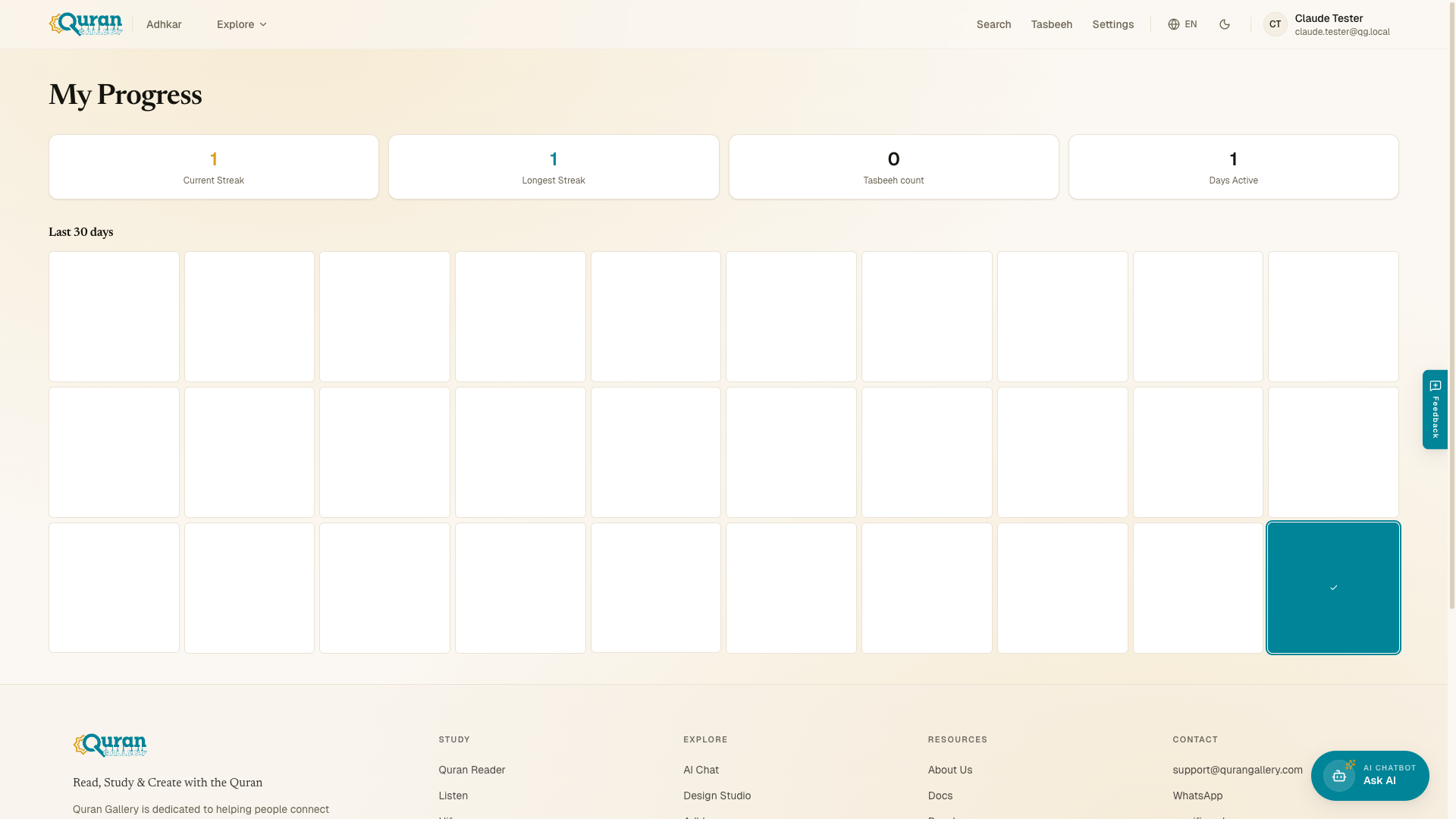
Open My Progress at qurangallery.com/adhkar/progress to see your dhikr habit at a glance. Four stat cards sit at the top:
| Stat | What it shows |
|---|---|
| Current Streak | Consecutive days you’ve kept up your practice. |
| Longest Streak | Your best run of consecutive days. |
| Tasbeeh count | Your recent tasbeeh total (summed from your latest activity). |
| Days Active | Days you’ve used the app. |
Below the cards, a Last 30 days activity heatmap shows a small square for each of the past 30 days — filled on days you practised, with today ringed — so you can see your rhythm at a glance.
Looking for This Week, This Month, or Adhkar Read? Those period totals live in My Journey on the tasbeeh counter, alongside your consistency and lifetime totals.
Streaks and stats are tied to your Quran Gallery account. Sign in so your progress is saved and tracked across devices.
Settings
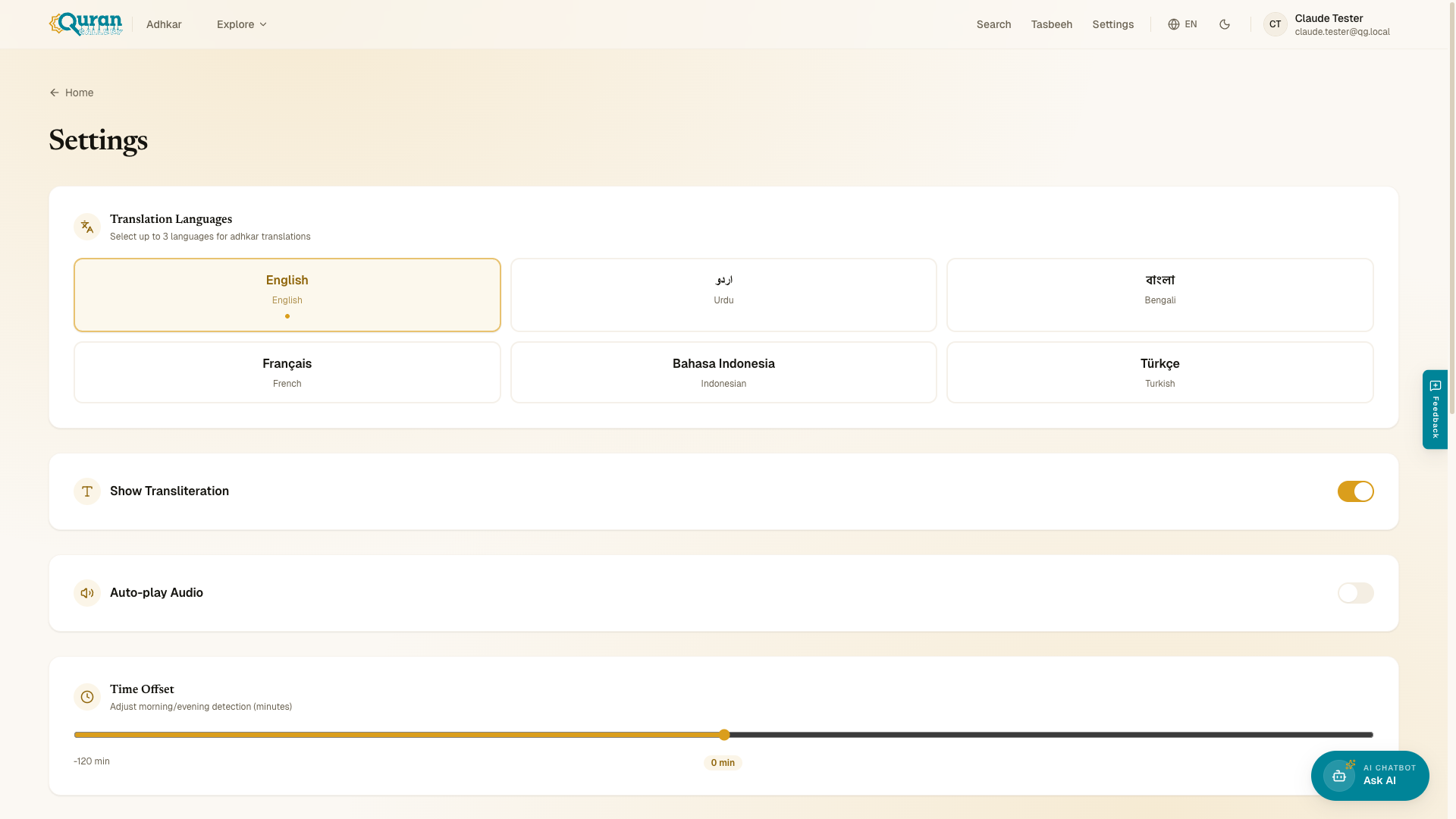
Open Settings at /settings to control how every dhikr is displayed:
- Translation Languages — “Select up to 3 languages for adhkar translations.” Choose from Arabic, English, Urdu, Indonesian, Turkish, Bengali, and French; the translations you pick appear under each dhikr.
- Show Transliteration — toggle the Latin-script reading of the Arabic on or off.
- Auto-play Audio — start the recitation automatically when you open a dhikr.
- Time Offset — “Adjust morning/evening detection (minutes).” Shift when the app treats it as morning, evening, or sleep time, in minutes, so the right daily set greets you at the right moment — and so an Evening session hands over to Sleep at the hour that suits you.
A Reading section controls how a category opens and how counting feels:
- Default mode — choose whether a category opens in Practice (one card at a time) or Read (a scrolling list). You can still flip between the two inside any category; this just sets which one opens first.
- Reduce motion — swap the card slide animations for an instant cross-fade.
- Reduce sound — silence the counter chime. (On Android, the gentle vibration still fires.)
Tap Save to apply your changes; the app confirms with Settings saved.