Having a conversation
Start a new chat, use suggested and follow-up prompts, regenerate answers, copy messages, speak your question, search your history, and share conversations.
On this page
This page walks through everything you can do inside a chat — from your first question to sharing the whole conversation with someone else.
Starting a new chat
Select New Chat to begin a fresh conversation at qurangallery.com/chat/new. If you’re not
sure what to ask, tap one of the suggested questions to get going:
- What are the five pillars of Islam?
- Tell me about Surah Al-Fatiha
- What is the importance of Salah?
- How to perform Wudu?
Type your own question in the box (Ask about Islam, Quran, or Hadith...) and
send it. Each conversation gets its own URL like qurangallery.com/chat/<id>.
Speaking your question (voice input)
Instead of typing, select Record voice and speak. Your browser will ask for microphone permission the first time. When you stop, the audio is transcribed and the text appears in the input box, ready to edit or send.
You don’t need to set a language first — the chatbot detects the language you spoke and transcribes it in that language. If you mix languages (for example, Urdu with an Arabic Qur’anic phrase), it keeps both as you said them.
If you see a microphone-permission error, allow microphone access for the site in your browser settings and try again.
What’s in an answer
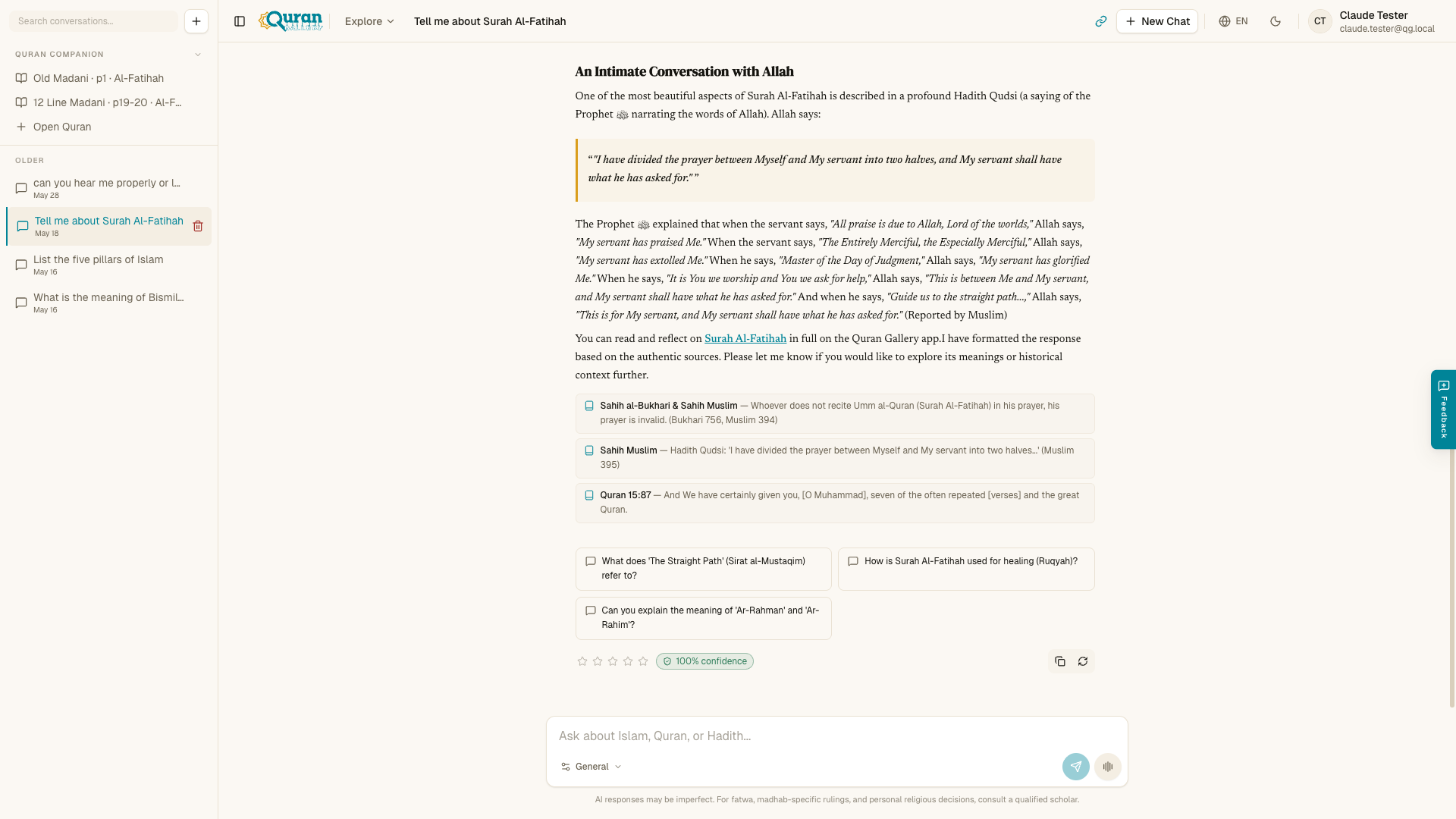
An answer is more than a block of text. Depending on your question, a reply can include several parts, top to bottom:
| Part | What you see |
|---|---|
| At a glance | A one-line summary at the top (At a glance:) so you get the gist before reading the full answer. |
| A short clarification | If your question could mean a few things, the chatbot first asks a quick multiple-choice question instead of guessing — see below. |
| Reviewed / Revised by Quran Gallery | A small label shown when the answer passed a second scholarly-review pass. If the review changed the answer, you’ll see Revised by Quran Gallery with a Show original link that reveals the pre-revision version (Hide original puts it back). |
| Mini-app cards | Interactive cards for inheritance, adhkar, Qur’an verses, or prayer times, embedded right in the answer — see Interactive answer cards. |
| Confidence | A badge showing how confident the answer is (for example, 92% confidence), colored from low to high. |
| Caveat banner | An occasional note (Note:) if something limited the answer — for instance, if review wasn’t available — asking you to verify with a scholar before acting. |
| Important Religious Alert | A prominent warning that appears on fatwa-type questions, reminding you not to make fatwa-level decisions from AI alone. |
| Sources | The Qur’anic verses, Sahih Hadith, and classical references the answer draws on, so you can check them yourself. |
| Suggested follow-up questions | One-tap questions to continue the thread — see below. |
The At a glance summary, confidence badge, caveat banner, and the Important Religious Alert are all there to help you read critically. They never replace a qualified scholar — see the trust note on the overview.
When the chatbot asks you a question first
Sometimes your question is open to interpretation. Rather than guess, the chatbot replies with a short clarification question and a row of choice buttons. Tap the option that matches what you meant, and it answers from there. This keeps the conversation accurate without you having to re-type your question.
Working with an answer
Each AI reply gives you a few controls:
| Action | What it does |
|---|---|
| Rate this answer | A 1-to-5 star rating to tell us how helpful the answer was. |
| Copy answer | Copies the answer text to your clipboard. |
| Regenerate response | Asks the same question again for a fresh answer. |
| Previous / Next version | Browse between the answers you’ve regenerated. |
Regenerating doesn’t lose the earlier answer — it’s kept as a version you can
flip back to with Previous version and Next version, shown as a counter
like 1/3.
Suggested follow-up questions
Under an answer you’ll often see Suggested follow-up questions, based on your current question. Tap one to insert it into the input, then send it to continue the thread.
While your answer is being written
Answers stream in as they’re written, with a small status pill showing the
current step — Connecting…, then Generating response…. You may also see Reviewing this answer…: at that point the answer pauses for a second pass that checks the references and wording before finishing. This is the same review
that produces the Reviewed / Revised by Quran Gallery label described above.
If you’d rather not wait, you can Stop generating.
Usage limits
To keep the service fast and fair for everyone, there’s a limit on how quickly
you can send messages. If you go too fast you’ll see a friendly note — You're sending messages too quickly. Please wait a minute and try again. —
and you can pick right back up after a short pause.
Your conversation history
The sidebar keeps your past conversations, grouped by date so older threads stay out of the way:
- Today
- Yesterday
- Previous 7 Days
- Older
Use the search box (Search conversations...) to find an old thread by what you
discussed. If nothing matches you’ll see No matching conversations.
Sharing a conversation
To let someone read a conversation without an account:
- Open the conversation and select Share conversation.
- Select Copy link — you’ll see
Link copied to clipboard!. The link points to a read-only view atqurangallery.com/chat/share/<token>. - Send the link to anyone. They can read the exchange and are invited to Start your own conversation.
To stop sharing, select Unshare — the public link stops working.
Deleting a conversation
Select Delete conversation and confirm (Delete this conversation?) to
remove a thread from your history.