Forgot password / reset password
How to recover your account if you forget your password — request a reset link and choose a new password.
On this page
If you can’t remember your password, you can request a reset link by email. It’s a two-page flow: ask for the link, then set a new password from the link.
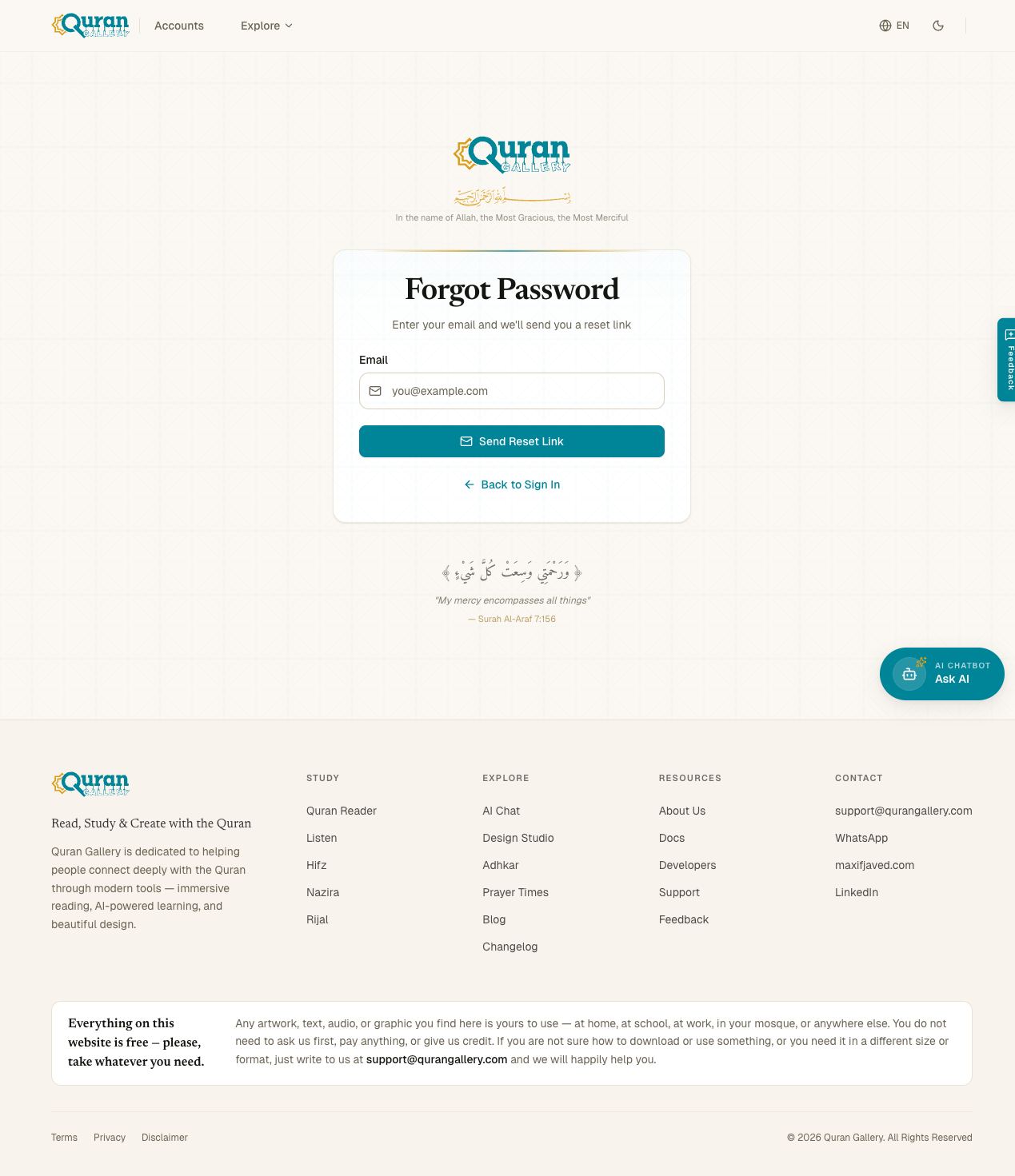
Step 1 — Request a reset link
- From the Sign in page, click Forgot password? above the password field. You land on accounts.qurangallery.com/forgot-password.
- Type the email address you registered with.
- Solve the Turnstile challenge if it shows up. It usually resolves automatically.
- Click Send Reset Link.
After you click submit, you’ll see a confirmation screen (“Check your email”) whether or not the address actually has an account. That’s intentional — we don’t tell strangers which emails are registered, because that would leak the user list. If you typed an unregistered email, simply nothing happens; if you typed the right one, an email is on its way.
The same Gmail-style normalisation that signup uses also applies here, so [email protected] and [email protected] will both resolve to the original [email protected] account.
Rate limits
Reset requests are capped at 3 per 15 minutes per IP. After that, you’ll need to wait — usually a sign that you’ve requested several links already, in which case just use the most recent one from your inbox.
Step 2 — Set a new password
Open the email titled “Reset your password — Quran Gallery”. Click the Reset Password button. The link is good for one hour and can only be used once.
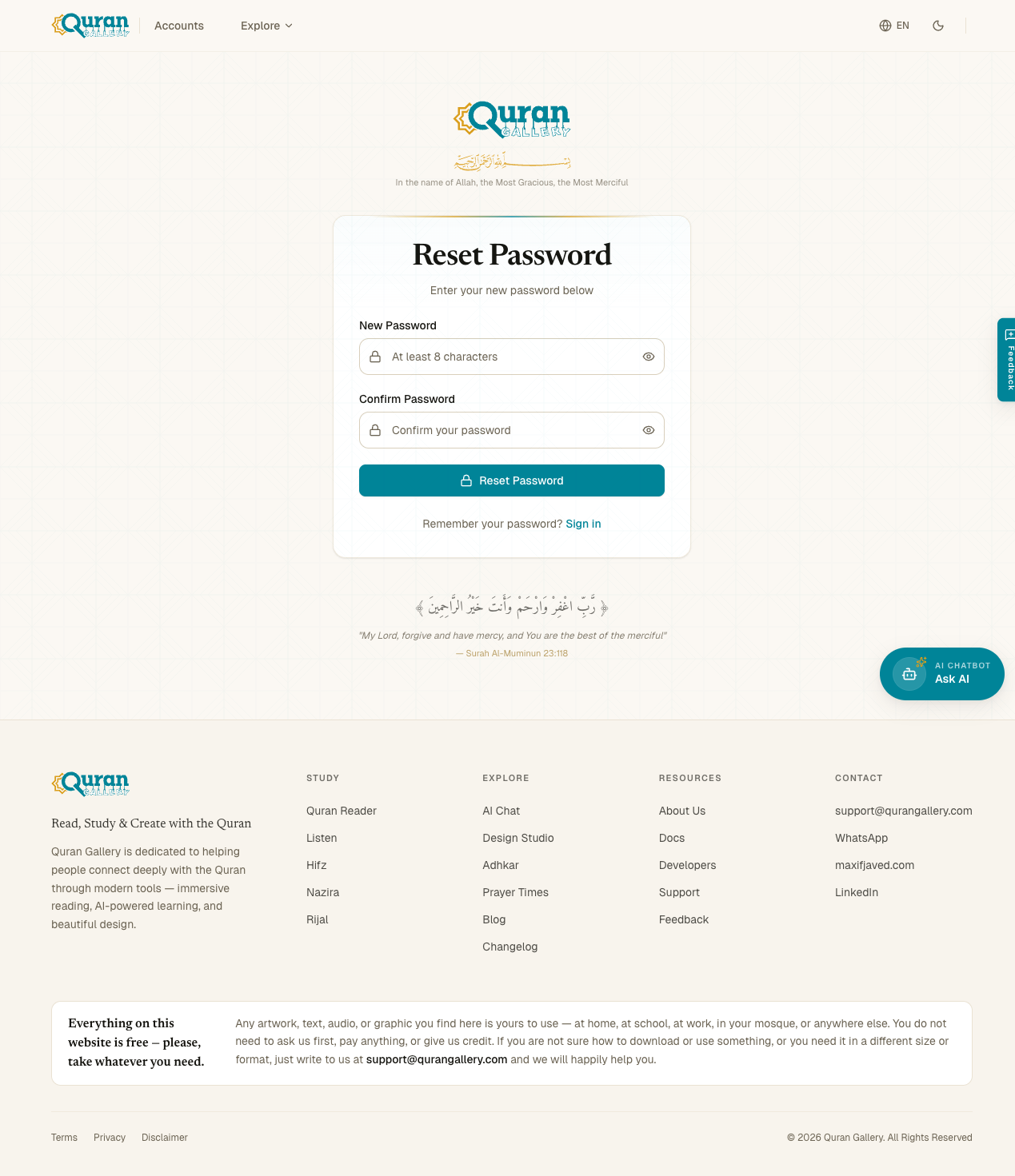
On the page that opens:
- Type a new password — at least 8 characters.
- Re-type it in Confirm Password.
- Solve the Turnstile challenge if shown.
- Click Reset Password.
If everything matches, you’ll see a green confirmation and be redirected to the sign-in page automatically after a few seconds. Use the new password from there.
If the reset link has expired or has already been used, the page will tell you so — go back to the forgot-password page and request a fresh one.
What gets reset, what doesn’t
- Reset: your password (the new one immediately replaces the old).
- Not touched: your name, email, avatar, two-factor settings, connected Google/Quran.com accounts, API keys, preferences, sessions, or any data in the Quran reader, madrasah, etc.
A password reset is not a session-revocation. If you suspect someone else has signed in as you, you should also sign out other devices from Settings → Active sessions → Sign out all other sessions after resetting — see Active sessions.
I signed up with Google / Quran.com — does this apply to me?
If you only ever signed in through Google or Quran.com, you don’t have a Quran Gallery password to reset. The reset flow won’t help you — instead, go back to the Sign in page and click Continue with Google / Continue with Quran.com.
You can add a password to your account at any time from Settings → Login methods → Set up — see Set a password.
What if I no longer have access to my email?
There is currently no self-service way to change the email address on an account you can’t sign in to. If you’ve lost access to the inbox you signed up with, contact support at the address listed on accounts.qurangallery.com — we may be able to help if you can prove ownership of the account.
Common errors
| Error | Fix |
|---|---|
| “This link has expired” | Reset links live for one hour. Request a new one. |
| “This link has already been used” | Each reset link is one-shot. Request a new one if you need to reset again. |
| “Passwords don’t match” | The two fields differ — re-type the second one. |
| “Password must be at least 8 characters” | Make the password longer. |
| “Too many requests” | You’ve hit the 3-per-15-minutes cap. Wait, then use the most recent link sent. |