Active sessions (devices)
See where you are signed in, identify each session, and sign out remotely from devices you no longer have access to.
On this page
Every time you sign in on a new browser or device, Quran Gallery starts a new session. Sessions are how the system remembers who you are between page loads. The Active sessions card in your settings lists every session that is currently valid — useful when you want to sign out a forgotten laptop, a public-library browser, or a phone you’ve sold.
How to find the sessions card
Sign in to accounts.qurangallery.com, open Settings, and scroll to Active sessions. The card lives toward the bottom of the page.
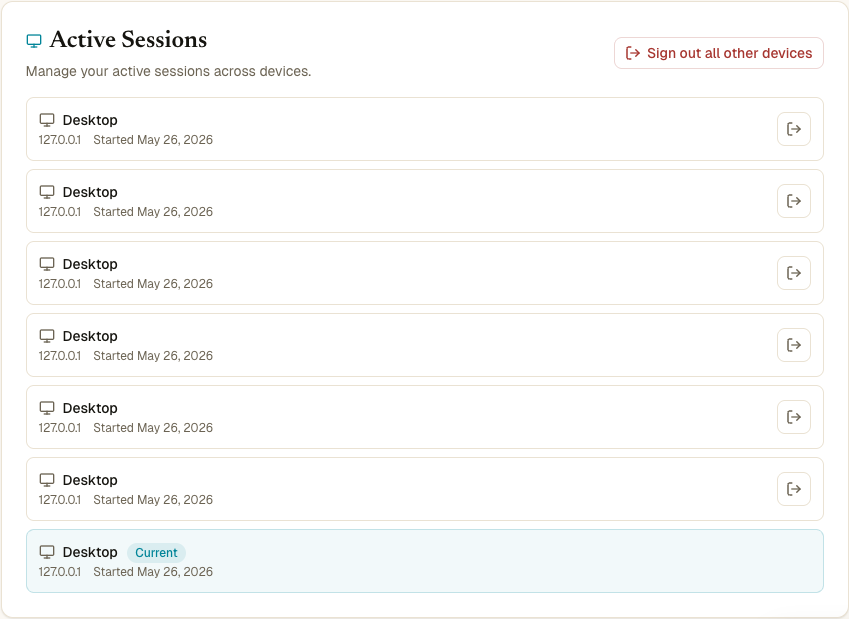
What each row shows
For each session, you see:
- Device — a coarse label: Desktop, Mobile, or Tablet. Inferred from the device’s user-agent string. Unknown means we couldn’t tell.
- IP address — the public IP the session was created from. Behind a Cloudflare proxy or a corporate VPN this may be the proxy’s IP, not your actual one.
- Started — the date the session was created. Most sessions stay valid for around 30 days unless you sign out.
- A “Current” badge — if this row is the session you’re using right now to view the page.
- A sign-out icon — present on every row except the current one.
Sign out a single session
Find the row you want to end and click the door icon on its right side. Confirmation is immediate — the row disappears, and whoever was using that session is signed out the next time their browser hits any Quran Gallery app.
If you accidentally sign out a session you wanted to keep, just sign back in from that device — sessions can be re-established at any time.
Sign out all other sessions
If you don’t have time to figure out which session is which, or if you suspect compromise, use Sign out all other sessions at the top right of the card. Every session except the one you’re currently using is invalidated in one click.
This is the right move when:
- You think your password may have leaked.
- You’re returning a laptop or selling a phone.
- You’ve used Quran Gallery on a friend’s device and forgot to sign out.
- A password reset just completed (resetting your password doesn’t automatically sign out other sessions).
You don’t need to also change your password — sign-out is enough to make the existing cookies useless — but doing both at the same time is a common precaution.
Can I sign out my current session?
Not from this card. To sign out the device you’re viewing right now, use the profile menu in the topbar of any app and choose Sign out, or visit accounts.qurangallery.com/logout directly.
This is a deliberate guardrail — clicking the wrong row in a panel labelled “sessions” shouldn’t accidentally lock you out of the page you’re using to manage sessions.
How long does a session live?
Sessions are valid for 30 days from the time they were created, and they don’t auto-extend on activity. After 30 days you’ll be asked to sign in again the next time you open a Quran Gallery app. Signing out manually invalidates the session immediately, regardless of age.
What about session cookies and “Remember me”?
There is no explicit “Remember me” checkbox — every successful sign-in creates a 30-day session. If you want a short-lived session (e.g., on a public computer), the cleanest approach is to sign out when you’re done, or use your browser’s private/incognito mode so the cookie is dropped when you close the window.
Banned and deleted accounts
If your account is banned, all of your sessions are revoked simultaneously and you’re sent to the Banned page on the next request. If you delete your account, every session is also invalidated as part of the deletion.
Common questions
The “Desktop” / “Mobile” label is wrong. The label is a best-guess from the browser’s user-agent string. Some browsers (and most desktop Linux setups) advertise themselves in ways that throw off the heuristic. The label doesn’t affect what the session can do — it’s just a friendly hint.
Two sessions for the same device — is that bad? Probably not. Different browsers (Safari and Chrome), private windows, or work and personal profiles each get their own session even on the same physical device. Combine that with the 30-day expiry and you can accumulate a few. If you don’t recognise any of them, sign-out-all and start fresh.
Why doesn’t the IP show a city or country? Quran Gallery only stores the raw IP — no geolocation lookup is run. You can paste the IP into any IP-lookup service yourself if you want a rough location.