Reading the Qur'an
Open the reader, switch between Read and Scan modes, tune the display, play audio, and open the study drawer.
On this page
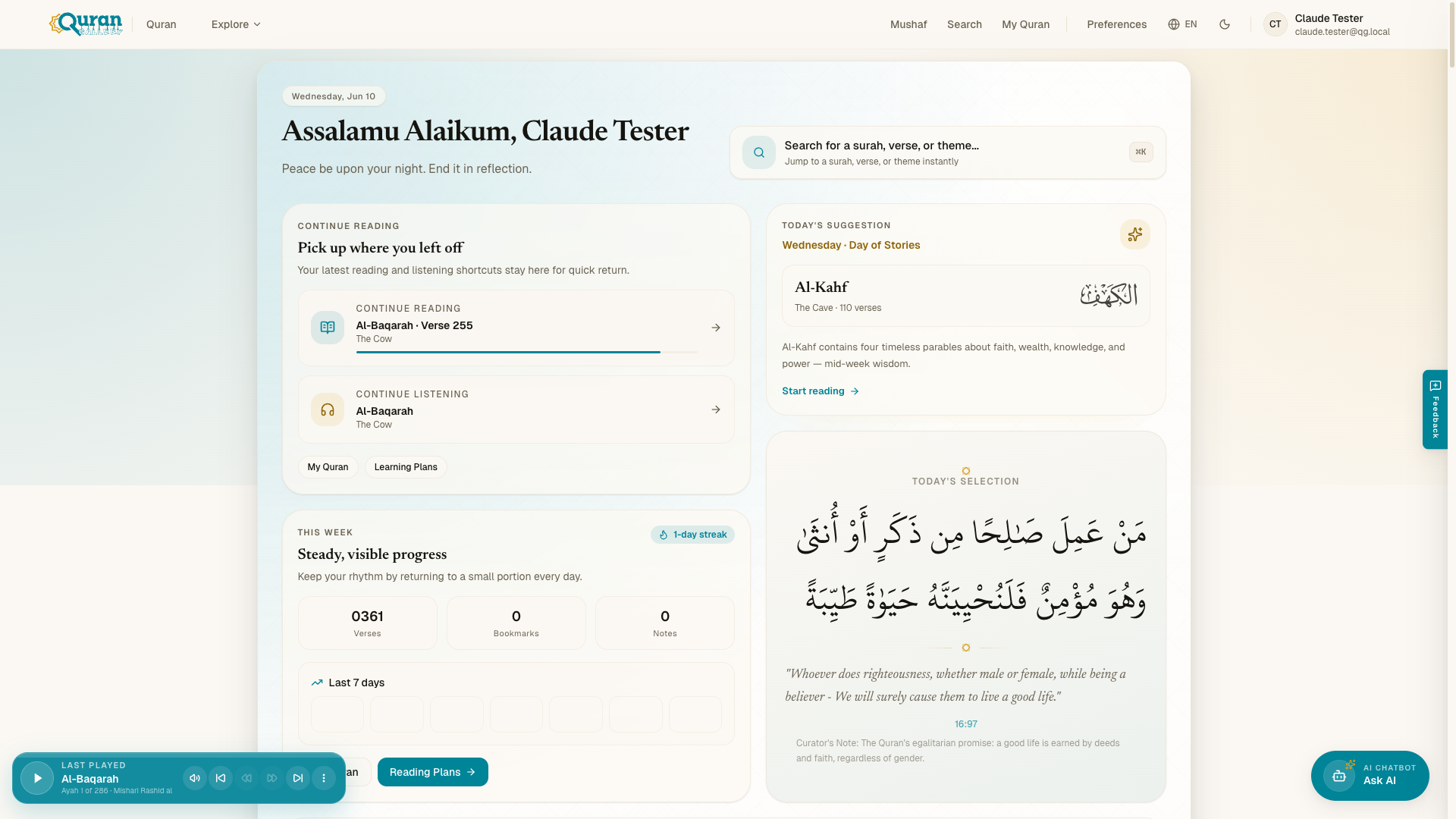
The Quran Gallery reader is an immersive reading surface for the whole Qur’an. You read verse-by-verse with translations, word-by-word, tafsir, and audio in one place — or switch to Scan mode to read the original muṣḥaf page images. Open it at qurangallery.com/quran.
Opening the reader
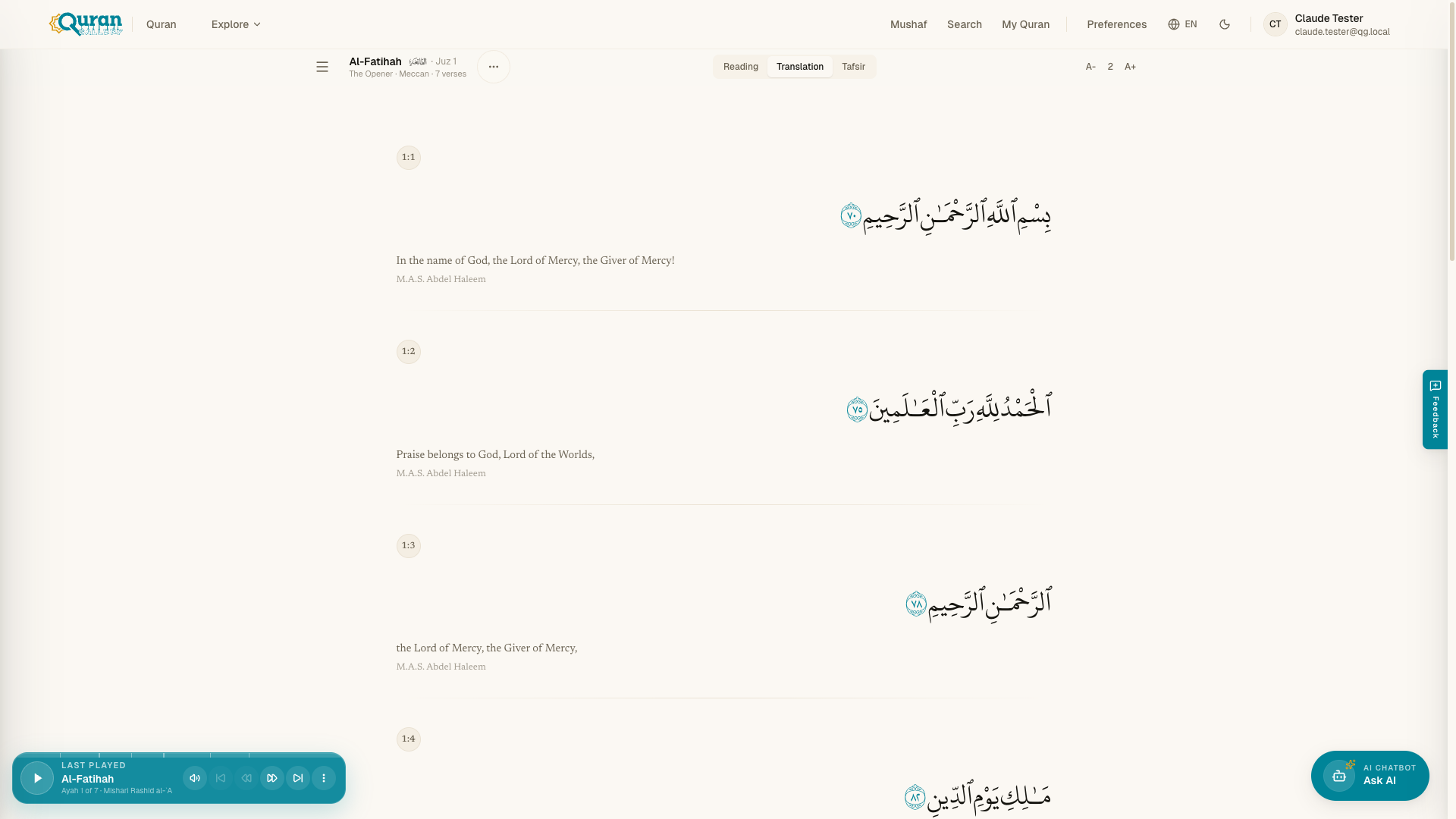
From the Quran home page, pick any chapter in the reading launchpad, or open a verse directly. Every chapter and verse has its own URL — for example qurangallery.com/quran/al-baqarah/255 opens Āyat al-Kursī (numeric links like /quran/2/255 redirect there). You can also browse a division (Juz, Hizb, Page) — see Finding your way around.
When you return, Continue Reading and Recently Read on the home page take you back to where you left off.
Read and Scan modes
The reader has two modes:
| Mode | What you see |
|---|---|
| Read | Verse-by-verse Arabic with optional translation, transliteration, and word-by-word. |
| Scan | Page images of the printed muṣḥaf, faithful to the original print — see Reading the muṣḥaf. |
Press the reading-mode key to cycle modes, or pick a mode from the reading hub. Read mode also lets you choose a reading division: Surah, Juz, Hizb (60 sections), Mushaf Pages (604), or Manzil (7 weekly).
Navigating verses
- Move between verses with the next/previous verse keys (the reader is right-to-left).
- Use the breadcrumb’s Jump to verse or Jump to mushaf page box to go to a specific āyah or page.
- Open the command palette with
⌘Kand type a verse reference like2:255to jump anywhere instantly.
Verse and word actions
Each verse has a row of quick actions (it appears on hover, and stays visible on touch):
| Action | What it does |
|---|---|
| Play | Start recitation from this verse. |
| Study | Open the study drawer on this āyah — see Study tools. |
| Bookmark | Save the verse to your bookmarks. |
| Add to collection | File the verse into one or more collections. |
| Copy | Copy the verse to your clipboard. |
| Share | Copy a link to the verse to share. |
Under More you’ll find the rest: Copy Arabic text, Copy with translation, Add note, and Memorize in Madrasah — which hands the verse off to the Madrasah app to add to your memorization plan.
Bookmarks, collections, and notes save to your account. The reader prompts you to sign in the first time you use one while signed out.
Tap a single word in the Arabic to open its own small menu:
| Word action | What it does |
|---|---|
| Play word audio | Hear that one word recited. |
| Copy word | Copy the Arabic word. |
| Study verse | Open the study drawer on the verse the word belongs to. |
| Share | Copy a link to the verse. |
Reading Preferences
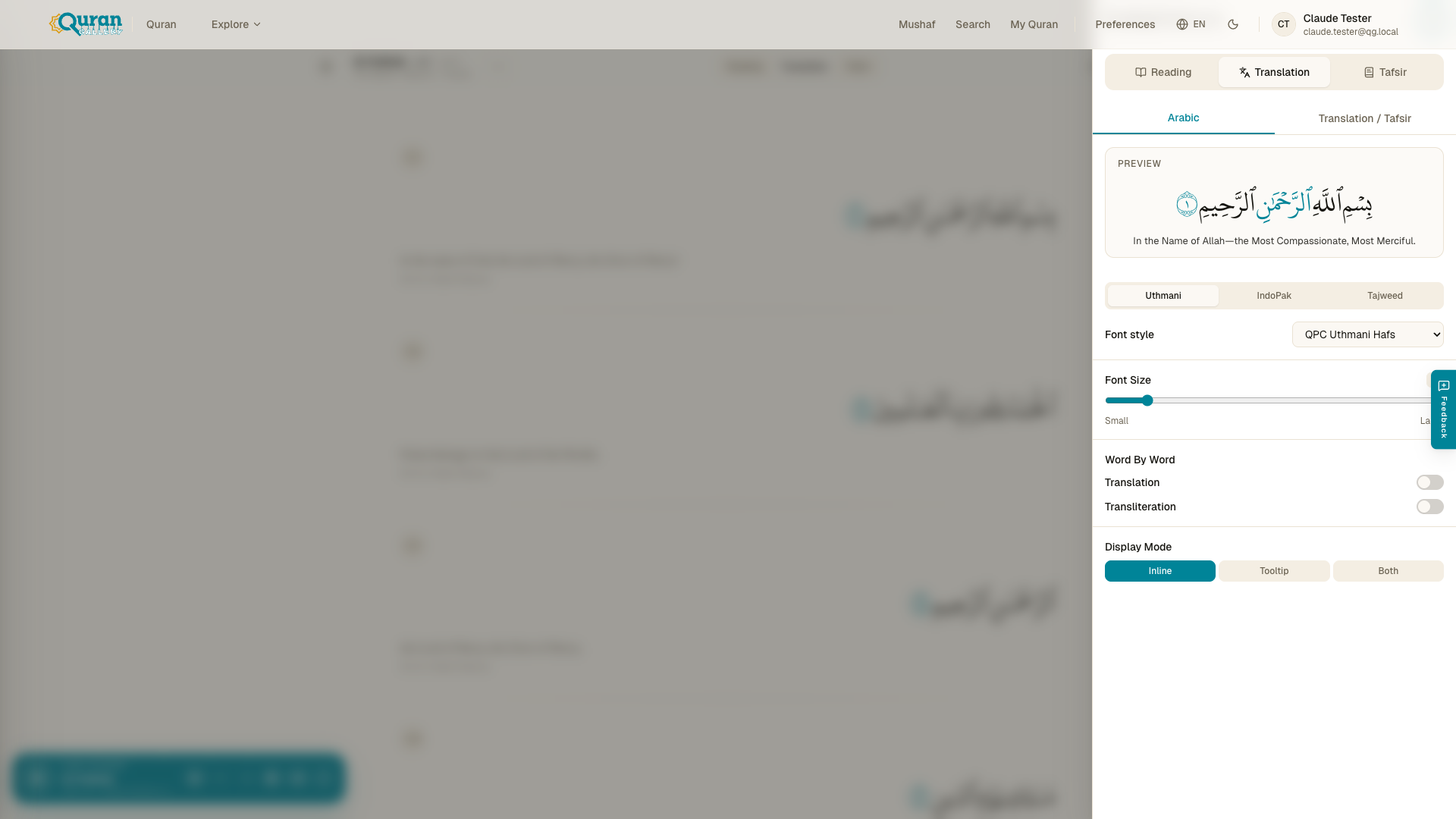
Open Reading Preferences (gear icon, or the settings key) to control how the text looks. At the top, a quick toggle switches the page between Reading, Translation, and Tafsir layouts. Below it, the settings are organised into two tabs: Arabic and Translation / Tafsir.
Arabic tab
The Arabic tab holds everything about the original text. It opens with three script families as sub-tabs:
| Sub-tab | What it sets |
|---|---|
| Uthmani | Choose the Uthmani Font style — QPC Uthmani Hafs, King Fahad Complex V1, or King Fahad Complex V2. |
| IndoPak | The IndoPak script, with a Lines choice of 15 Lines or 16 Lines. |
| Tajweed | The colour-coded Tajweed script, with a Show Tajweed Rules toggle. |
Below the script picker, the rest of the Arabic tab controls:
- Font Size — drag the slider from small to large.
- Word By Word — toggle per-word Translation and Transliteration on or off.
- Display Mode — show the word-by-word text Inline under each word, as a Tooltip on hover, or Both.
Lines (15 / 16) changes the muṣḥaf layout in both Read and Scan modes — it sets the page shape the script is laid out on, not just the page images.
Translation / Tafsir tab
The second tab is where you pick your reference material: choose which Translations appear beneath the Arabic, and which Tafsir opens in the study drawer. Pick one or many — see Study tools for how they read.
Audio settings aren’t in this panel — they live on the player itself. See Listening & reciters.
Audio playback
Play recitation from any verse. The audio player offers reciter selection, playback speed, repeat, a sleep timer, and download. For the full audio walkthrough see Listening & reciters.
The study drawer and Deep Study
The study drawer opens alongside the text and stays synced to the āyah as you read — so tafsir, translations, and word meanings always track the verse in front of you. Open it from a verse’s Study action (or the study quick-action that appears when you hover a verse).
You can Pin the drawer open, or turn scroll sync on / off if you’d rather it stay put on one verse. To go deeper, use Expand to deep study in the drawer header: Deep Study is a distraction-free, full-screen workspace with the verse pinned at the top and previous / next controls to move through the surah without losing your study tools. Everything inside both surfaces is covered in Study tools.
Immersive and fullscreen
For distraction-free reading, toggle immersive mode to hide the chrome, or fullscreen to fill the screen. Both have keyboard shortcuts (below) and can be toggled back the same way.
Keyboard shortcuts
The reader is fully keyboard-driven. Open the Keyboard Shortcuts panel from inside the reader to see the bindings on your platform — the grouped actions are:
| Group | Action |
|---|---|
| Playback | Play / Pause |
| Playback | Next verse (RTL) · Previous verse (RTL) |
| Playback | Decrease speed · Increase speed |
| Volume | Volume up · Volume down |
| Reader | Cycle reading mode |
| Reader | Toggle study drawer |
| Reader | Toggle immersive mode |
| Reader | Toggle fullscreen |
| General | Toggle settings |
| General | Close overlay |
| General | Show this help |
Open the search command palette with
⌘K(orCtrl+K) from anywhere in the reader — type a verse reference like2:255or a keyword to jump.