Your profile (name, avatar, email)
How to change your display name, upload an avatar, and change the email address on your account.
On this page
The Profile section at the top of your settings is where you control what other people see about you — your name and avatar — and where you change the email address tied to your account.
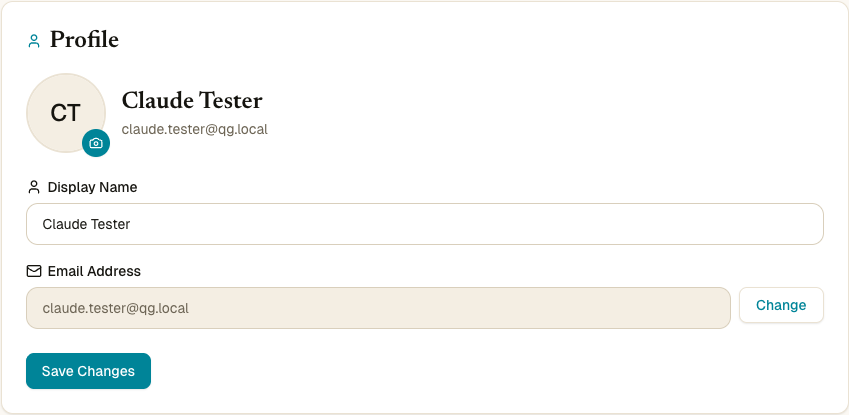
How to get to your profile
Sign in to accounts.qurangallery.com and open Settings. The Profile card is the first one on the page; you can also jump to it via the left-rail link Profile (visible on wider screens) or by appending #profile to the URL.
Change your display name
- Type the new name into the Display name field.
- Click Save changes.
A green toast confirms the save, and the new name appears in the topbar across every Quran Gallery app within a few minutes (faster on a refresh).
The validation rules are the same as on signup — any Unicode script is allowed, plus spaces, hyphens, apostrophes, periods, and middle dots. Digits and emoji are blocked. See Create an account → What the name field accepts for the full rules.
Upload or remove your avatar
The circular profile photo on the left of the Profile card is your avatar. It shows up next to your name in the topbar and on any feature that displays user identities (comments, shared posts, etc.).
Upload
- Click the avatar (or the small camera icon at its corner).
- Pick an image file. Quran Gallery accepts JPEG, PNG, WebP, or GIF, up to 5 MB.
- The cropper dialog opens with the image previewed inside a circular mask.
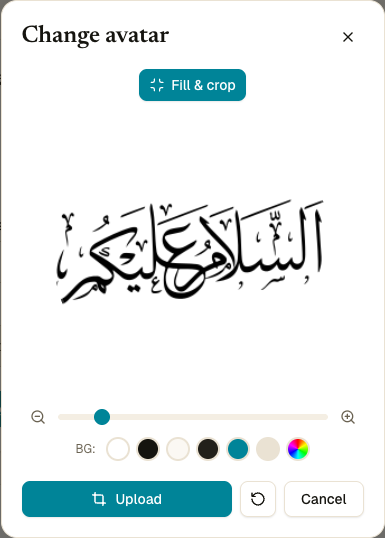
The cropper gives you several controls before you commit:
- Drag the image inside the circle to reposition it. Whatever falls outside the circle is trimmed off.
- Zoom slider at the bottom — drag right to zoom in (crop tighter on the centre), drag left to zoom out (show more of the image).
- Fill & crop — one-click auto-fit that scales the image so it fully covers the circle. Useful for transparent PNGs or photos with empty corners.
- BG (background) — six brand-aligned colour swatches (white, ink black, parchment, dark muted, primary teal, and ink-150) plus a custom colour picker on the right. The chosen colour fills any transparent or empty space inside the circle.
- Reset position — undoes any drag/zoom you’ve done in this session and returns the image to its starting fit.
- Cancel — closes the dialog without uploading. Your existing avatar (if any) is unchanged.
- Upload — commits the cropped result. The dialog closes and the new avatar appears immediately in the topbar and on every Quran Gallery app within a few minutes.
The image is automatically:
- Resized to 256×256 pixels — bigger uploads are scaled down server-side, smaller ones aren’t upscaled.
- Re-encoded as JPEG at high quality (~95%) — the final file is usually under 100 KB.
- Hosted at our R2 storage endpoint with cache-busting so changes appear instantly across the suite.
Remove
If you’ve already uploaded an avatar and want to go back to your default initials, click Remove avatar under the camera. A small confirmation toast appears once the avatar is gone.
What if I have a Google or Quran.com avatar?
If you’ve never uploaded your own image, Quran Gallery uses the avatar from your Google or Quran.com account, when one is available. Uploading replaces it; removing yours falls back to the provider’s avatar (or your initials if none).
Avatar troubleshooting
| Error | Fix |
|---|---|
| “Invalid file type” | Re-export the image as JPEG, PNG, WebP, or GIF. |
| “File too large. Maximum size is 5MB” | Resize or compress the image before uploading. |
| “Failed to process image” | The file is malformed or corrupt. Try a different one. |
| Avatar still shows the old image after save | Hard-reload (Cmd+Shift+R on Mac, Ctrl+Shift+R on Windows/Linux) to bust the cache. |
Change your email
Your account email is what verification, reset, and 2FA notifications go to. Changing it is a deliberate two-step process — we send confirmation links to both the old and the new inbox to make sure you control both.
Step 1 — Ask to change
- In the Profile card, find the email row. Click Change next to your current email.
- A small inline form appears with the current email at the top, a field for the new address, and Send Verification / Cancel buttons.
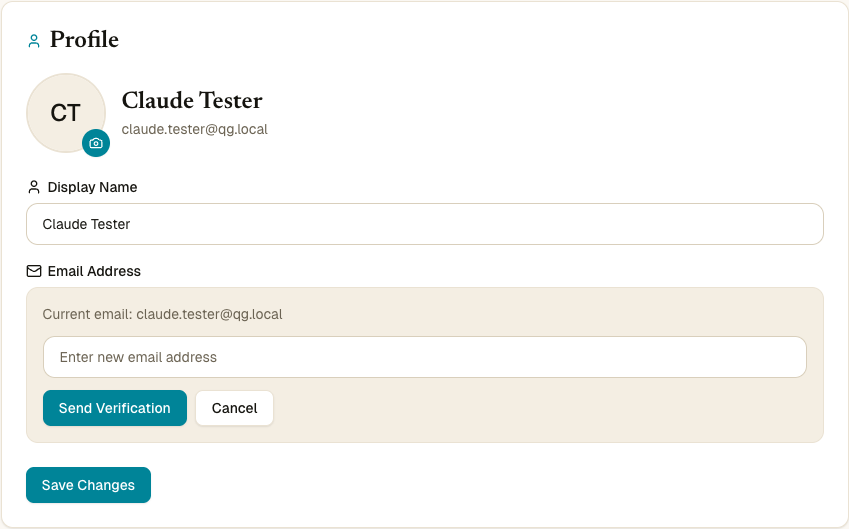
- Type your new email address in the field.
- Click Send Verification.
Quran Gallery emails a confirmation link to your current (old) email. The subject is “Confirm email change — Quran Gallery”.
While step 1 is pending, the email row shows a banner: “Verification sent — Check <old email>”. The banner survives across devices — if you submitted on your laptop, you can finish the flow on your phone.
The first email is intentionally sent to your old address. The point is to prove the person changing the email is the same person who currently has access to the account — not someone who hijacked your session.
Step 2 — Verify the new inbox
Open the confirmation email in your old inbox and click Confirm Email Change. Quran Gallery then sends a second email — this time to your new address — with the subject “Verify your new email — Quran Gallery”.
The settings banner updates to: “Step 2 — Verify <new email>”.
Open the second email and click Verify This Email. Your account email is now switched.
The banner disappears, all your previous sessions stay valid (you’re not signed out), and future verification and reset emails are sent to the new address.
Cancelling a pending email change
There’s no explicit cancel button — the pending request expires after one hour if you don’t complete step 2. You can also just ignore both emails and the change won’t go through.
Rate limits
Email-change requests are capped at 3 per 15 minutes per IP. The same disposable-email check from signup applies: temp-mail addresses are rejected for the new email.
When I can’t change my email
| Situation | What’s possible |
|---|---|
| Your only login method is Google or Quran.com (no password) | The email is “managed” by that provider — change it on Google/Quran.com first. The email row is read-only and tells you this. |
| You don’t have access to your current inbox | Step 1 sends to the current address. Without it, you can’t authorise the change. Contact support. |
| You don’t have access to the new inbox | Step 2 fails. Use a different new address. |