Two-factor authentication (2FA)
Add a second sign-in step using an authenticator app, save backup codes, and verify the 6-digit code at sign-in time.
On this page
Two-factor authentication adds a second sign-in step beyond your password. Even if someone else learns your password, they can’t sign in unless they also have the 6-digit code from your authenticator app — which lives on your phone, not in your email.
Prerequisite: 2FA requires a password on your account. If you signed up with Google or Quran.com and have never set one, first follow Set a password.
What you need
- An authenticator app on your phone. Any standard TOTP app works:
- Google Authenticator (iOS / Android)
- 1Password, Bitwarden, Apple Passwords (Keychain), Microsoft Authenticator
- Aegis (Android), Raivo OTP (iOS), Authy, and so on
- A safe place to keep 10 backup codes — a password manager is ideal.
Turning 2FA on
- Sign in to accounts.qurangallery.com and open Settings.
- Scroll to the Security section.
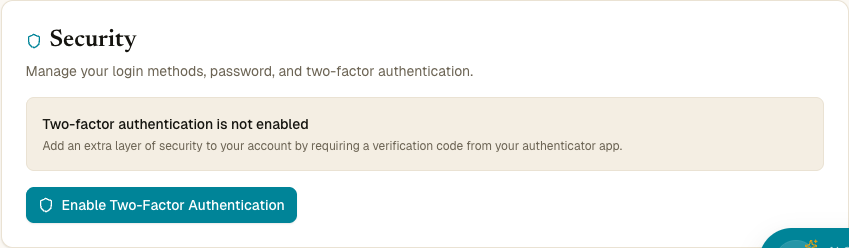
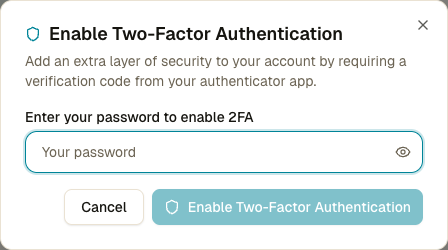
- Click Enable 2FA. A small dialog asks you to confirm your password — this is to make sure it’s actually you, not someone who got hold of an unattended session.
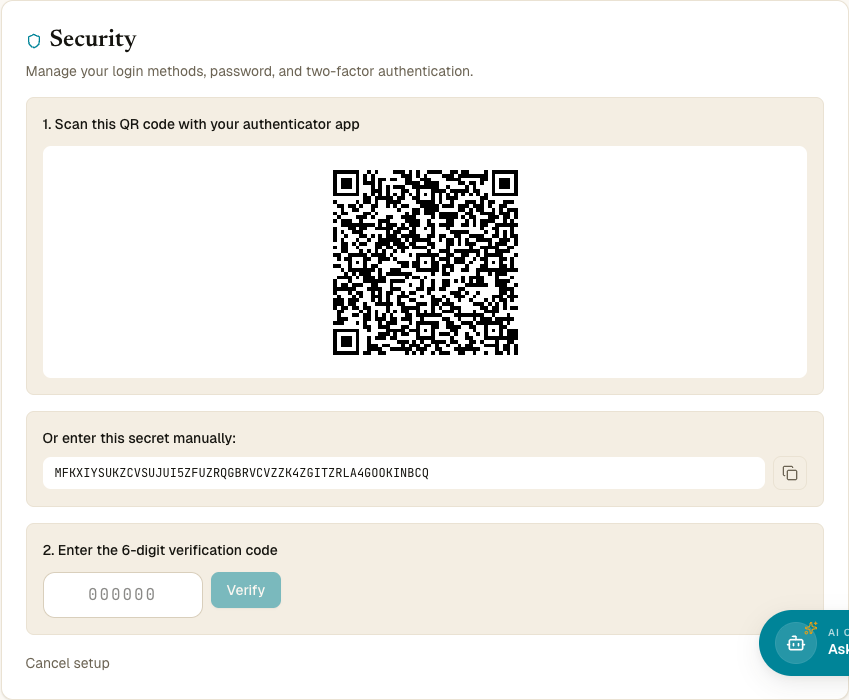
- After confirmation, a QR code appears together with the text secret and a verification input.
Sub-step 1 — Scan the QR code
Open your authenticator app and add a new account by scanning the QR code on screen. The entry will appear in the app as Quran Gallery with your email beside it.
Can’t scan? Under the QR code is a text secret key — copy it and paste it into your authenticator app’s “enter setup key manually” option.
Sub-step 2 — Save your backup codes
The page shows 10 ten-character backup codes laid out in a 2- or 3-column grid. Copy them to a safe place now. You won’t see them again after you dismiss this screen.
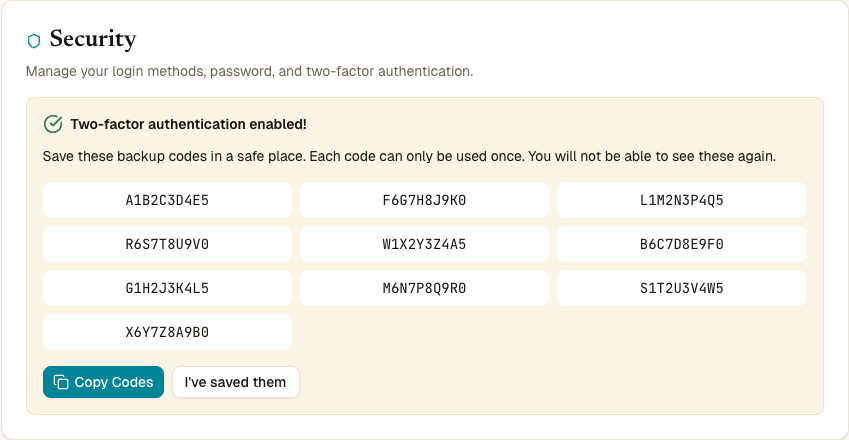
These codes are your lifeline if you lose your phone. Each one works exactly once and can be used in place of a normal authenticator code at sign-in. Treat them like passwords — keep them in a password manager or printed somewhere offline, not in plain text in your email.
Click Copy backup codes to put all ten on your clipboard, then click I’ve saved my backup codes.
Sub-step 3 — Verify the first code
Type the current 6-digit code from your authenticator app into the verification box. If it matches, 2FA is now active.
What changes after you enable 2FA
- Every future sign-in with your password takes you through a /2fa/verify page that asks for a 6-digit code from your authenticator app.
- Google and Quran.com sign-ins don’t trigger 2FA — those providers handle their own two-factor checks. So if you’ve enabled 2FA on Quran Gallery but sign in via Google, you won’t be asked for a code by Quran Gallery (you may still be asked by Google).
- API key requests aren’t affected — API keys carry their own authentication and don’t go through the password flow.
- Your active sessions are not signed out. If you want to require 2FA on all your existing devices immediately, sign out other sessions from Settings → Active sessions → Sign out all other sessions.
Signing in with 2FA
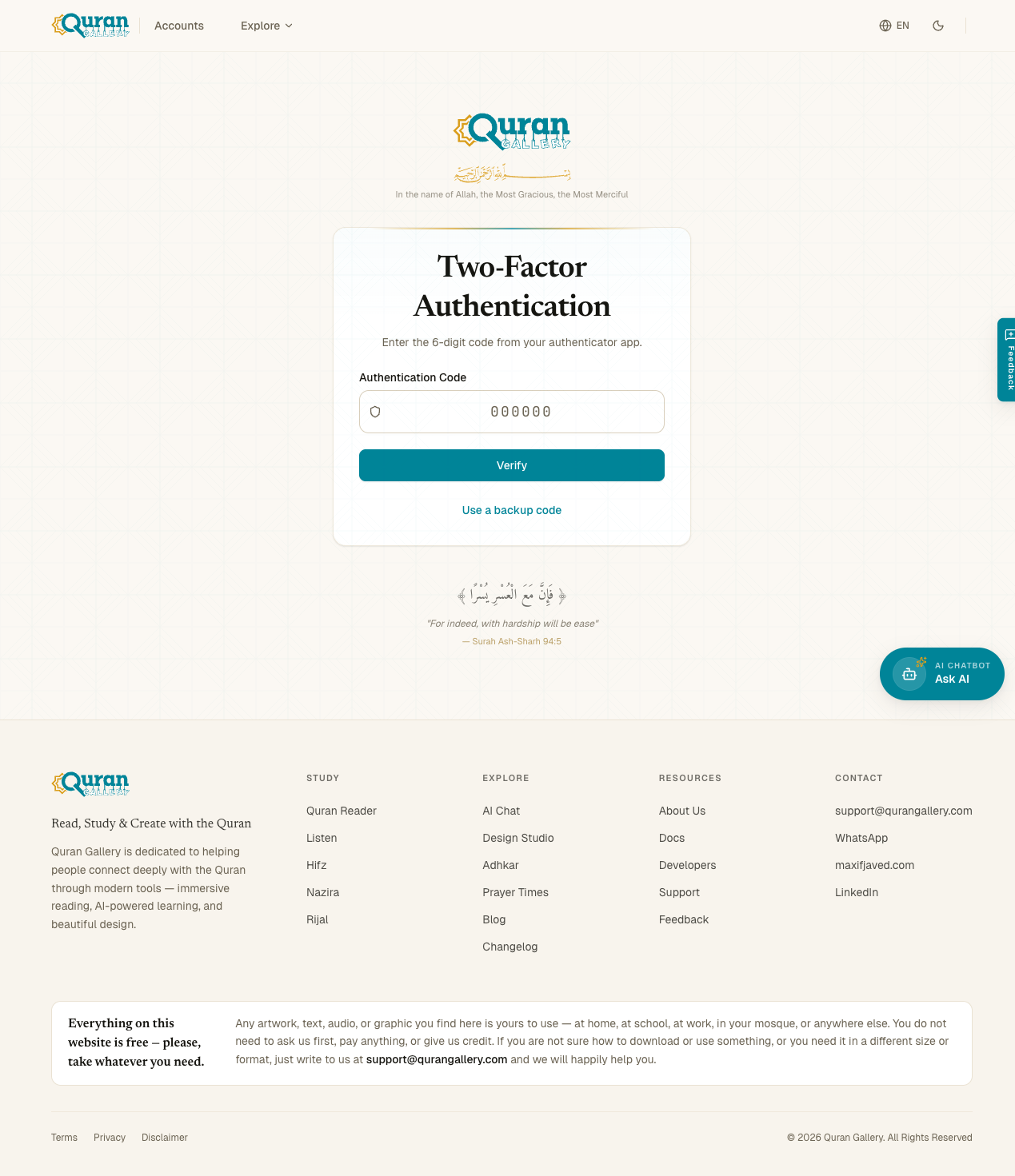
After you type your password on the sign-in page, you’ll land on /2fa/verify:
- Open your authenticator app and find the 6-digit code under Quran Gallery. The code refreshes every 30 seconds.
- Type the code (no spaces) into the input box.
- Click Verify.
If the code is wrong, you’ll see “Invalid code” and can try again. After 5 failed attempts in 5 minutes, sign-in is rate-limited from your IP — wait and try again.
Using a backup code instead
If you don’t have your phone, click Use backup code instead at the bottom of the 2FA page. Type one of your saved 10-character backup codes (no spaces) and click Verify.
Once a backup code has been used, it’s consumed forever. After you sign in, immediately go to Settings → Security to regenerate a fresh set of codes — see “Regenerating backup codes” below.
Disabling 2FA
- Settings → Security → Disable 2FA.
- Enter your password to confirm.
- Click Confirm Disable.
Your TOTP secret and backup codes are deleted from your account. You’ll no longer be asked for a code at sign-in.
You can re-enable 2FA later — you’ll generate a new QR code and a new set of backup codes.
Regenerating backup codes
To rotate the backup codes (recommended after you’ve used one, or if you suspect a leak):
- Settings → Security → Disable 2FA, enter your password.
- Settings → Security → Enable 2FA, re-scan the same or a new account in your authenticator, save the new backup codes.
A direct “rotate codes” button is not currently exposed — the disable-and-re-enable round trip is the supported path.
I’ve lost my phone and my backup codes
If you can’t sign in at all because both your authenticator and backup codes are gone, contact support. Recovery requires proof that you own the account; allow a few days. Saving backup codes to a password manager when you first turn on 2FA prevents this scenario.
Common errors
| Error | What it means |
|---|---|
| “Invalid code” | The 6 digits don’t match what the server expects. Check your phone’s clock is correct — TOTP is time-based, so a clock that’s more than ~90 seconds off will fail. |
| “Code has expired” | The 30-second window closed mid-submit. Use the next code shown on your authenticator. |
| “Too many requests” | 5 failed verifications in 5 minutes. Wait, then try again. |
| “Backup code already used” | Each code is one-shot. Use a different one. |
| “Incorrect password” | The Enable/Disable dialog requires your password, not your 2FA code. |