Change your password
How to change your Quran Gallery password while you are signed in, from the Settings page.
On this page
If you can sign in and just want to rotate your password — periodic change, suspected compromise, sharing-a-device cleanup — you can do it from your settings without going through email.
This page is for users who already have a password on their account. If you signed up with Google or Quran.com and have never set one, see Set a password instead. If you’ve forgotten your password and can’t sign in, see Forgot password / reset password.
How to change your password
- Sign in at accounts.qurangallery.com.
- Open Settings (the topbar’s profile menu → Manage account, or go directly to
/settings). - Scroll to the Change Password section.

- Click Change Password. A dialog appears.
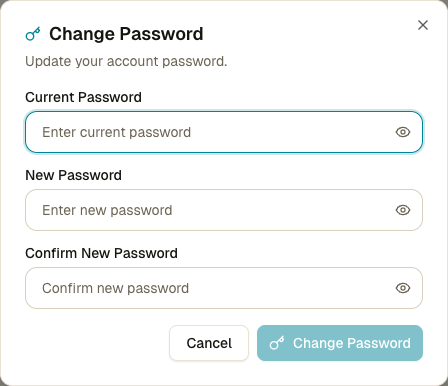
- Fill in:
- Current password — what you sign in with now.
- New password — at least 8 characters.
- Confirm new password — must match the new password exactly.
- Click Change Password in the dialog.
You’ll see a green toast confirming the change. The new password takes effect immediately.
What stays the same
Changing your password does not sign you out of any device — including the device you’re using right now. All your active sessions stay valid. If you want to sign everyone else out as a precaution, do it explicitly from Settings → Active sessions → Sign out all other sessions. See Active sessions.
Two-factor authentication is also unaffected. If 2FA was on, it stays on — your TOTP secret and backup codes don’t change.
What if I’m not sure my old password is right?
If you’re uncertain, don’t keep typing. The change-password endpoint is rate-limited at 5 attempts per 15 minutes per IP, and if you trip it you’ll be temporarily blocked from changing your password from this network. Use the Forgot password flow instead — it doesn’t require you to know the old password.
Common errors
| Error | What it means |
|---|---|
| “Invalid current password” | The Current password field doesn’t match. Try Forgot password. |
| “New password must be at least 8 characters” | Make the new password longer. |
| “Passwords don’t match” | The new password and confirmation don’t match. |
| “Too many requests” | You’ve hit the rate limit. Wait 15 minutes. |
Good password hygiene
- Use a unique password for Quran Gallery — not one you’ve reused on other sites.
- A password manager (1Password, Bitwarden, Apple Keychain, your browser’s built-in one) is the simplest way to keep that practice up.
- If you ever notice an unfamiliar session in Settings → Active sessions, change your password and sign out other devices immediately.
- Consider turning on two-factor authentication so a leaked password alone isn’t enough to sign in.