API keys (Developers page)
Create personal API keys to use Quran Gallery data in your own scripts and apps — generate, copy, and revoke them from the Developers page.
On this page
If you’re building something on top of Quran Gallery — a side project, a personal dashboard, an automation script — you can generate personal API keys that prove a request comes from you, without needing a browser session.
API keys are managed entirely from the Developers page in your account.
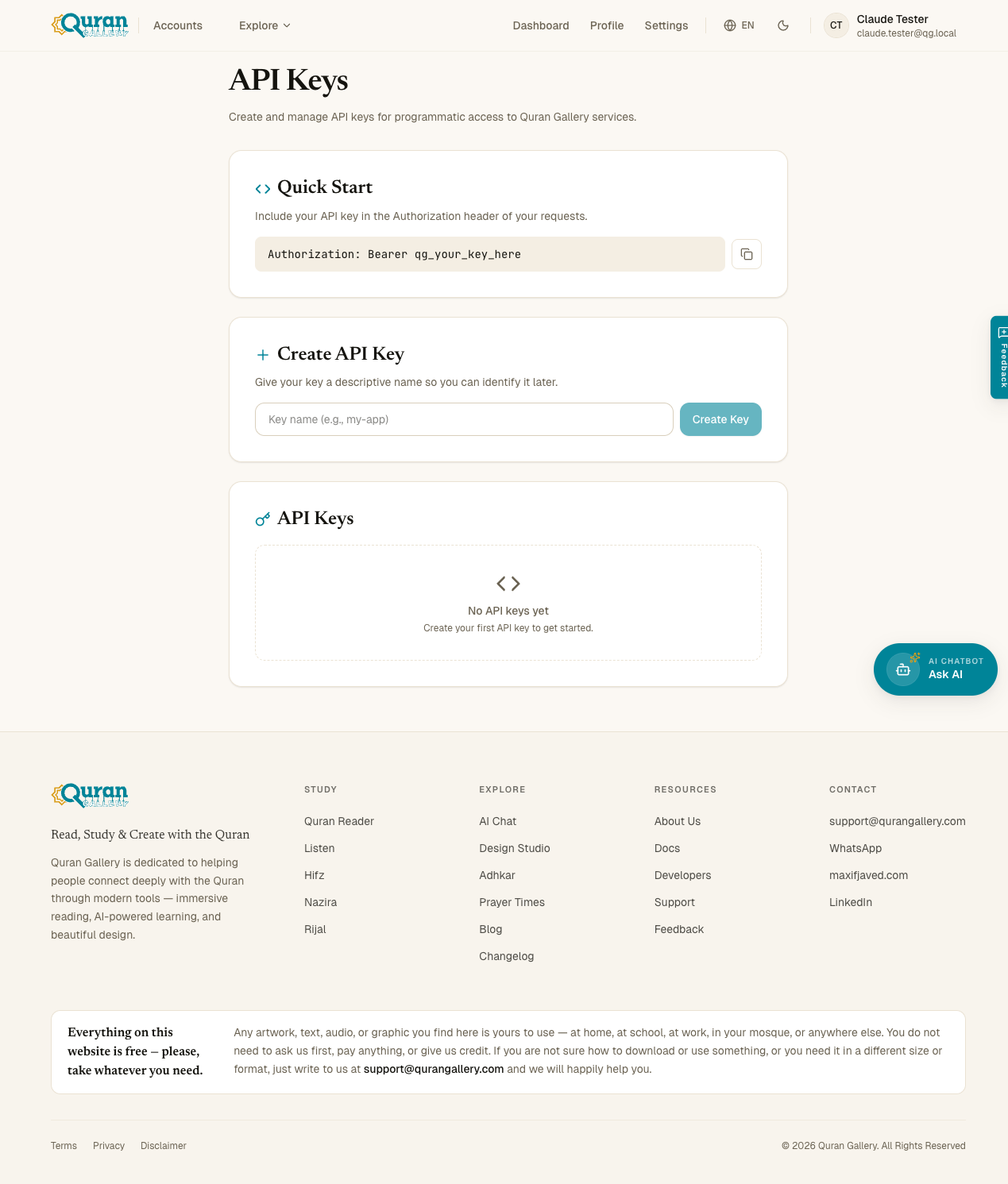
How to reach the Developers page
Sign in to accounts.qurangallery.com, then go to accounts.qurangallery.com/developers. You can also click your profile in the topbar — many menus link to it directly.
What an API key is
An API key is a long secret string that looks like:
qg_sk_ghjKm4x7pQ...The qg_sk_ prefix marks it as a Quran Gallery secret key — a distinctive prefix means automated secret scanners can spot one that leaks into a public repository or paste, which a plain random string cannot. When you send it in the Authorization: Bearer ... header on a request to Quran Gallery, the server treats the request as if you made it. So an API key is effectively a password to your account scoped to programmatic use — treat it like one.
Creating a key
- On the Developers page, find the Create New Key card.
- Type a descriptive name —
"Madrasah progress export script","My Raspberry Pi dashboard","Local dev". The name is just for you — it appears in the key list so you can remember which key is which. - Click Create key.
The new key appears at the top of the page in a green card with the full key value displayed. This is the only time you’ll see the full key. Click the copy icon to put it on your clipboard, then store it somewhere secure: a password manager, your cloud secret manager, an .env file outside version control.
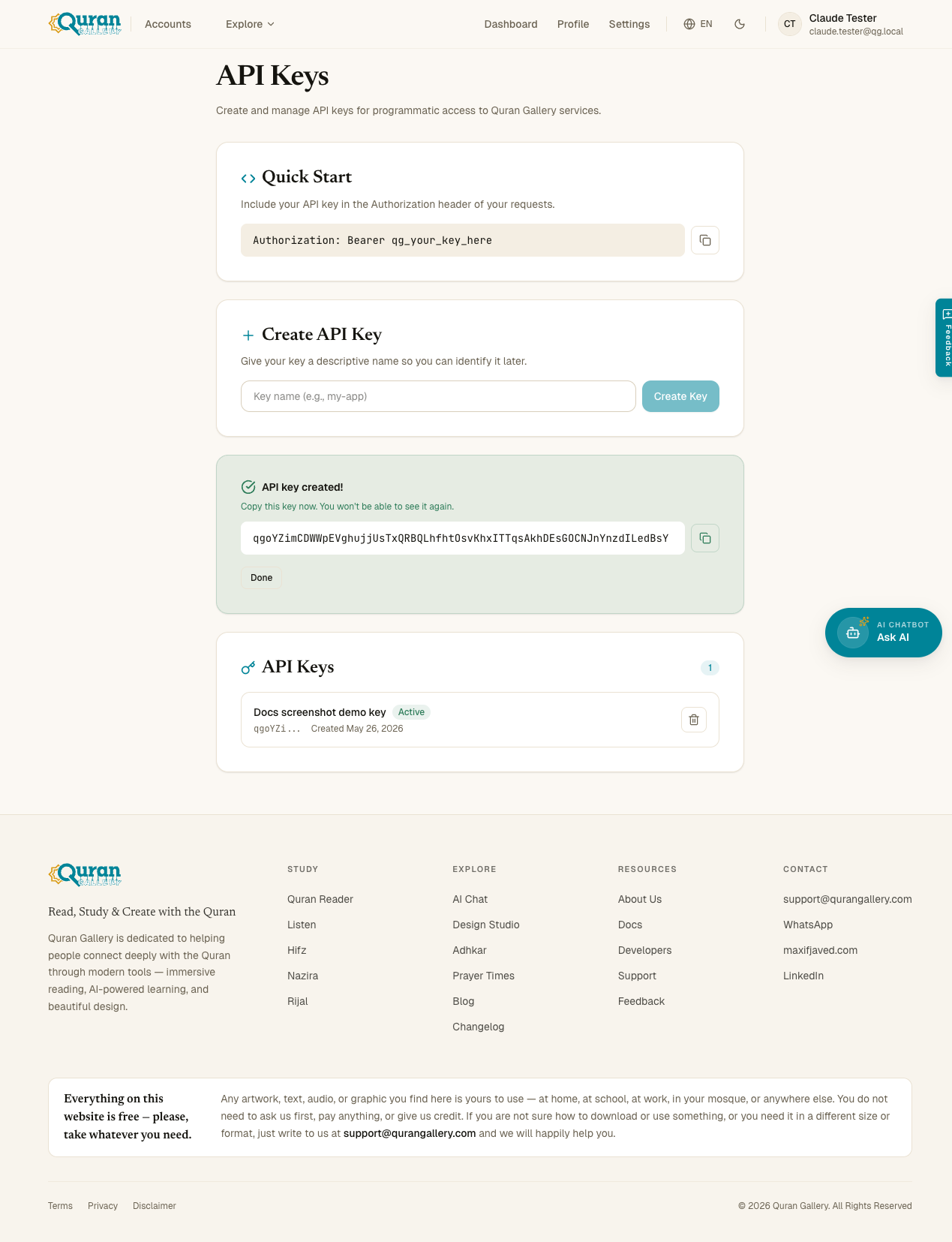
After you click Done, the green card disappears, and from that moment forward only the first few characters of the key (the “start”) are visible in the key list. There is no way to retrieve the full value again — if you lose it, you must create a new key and delete the old one.
The keys list
Below the create form, you see every key currently on your account.
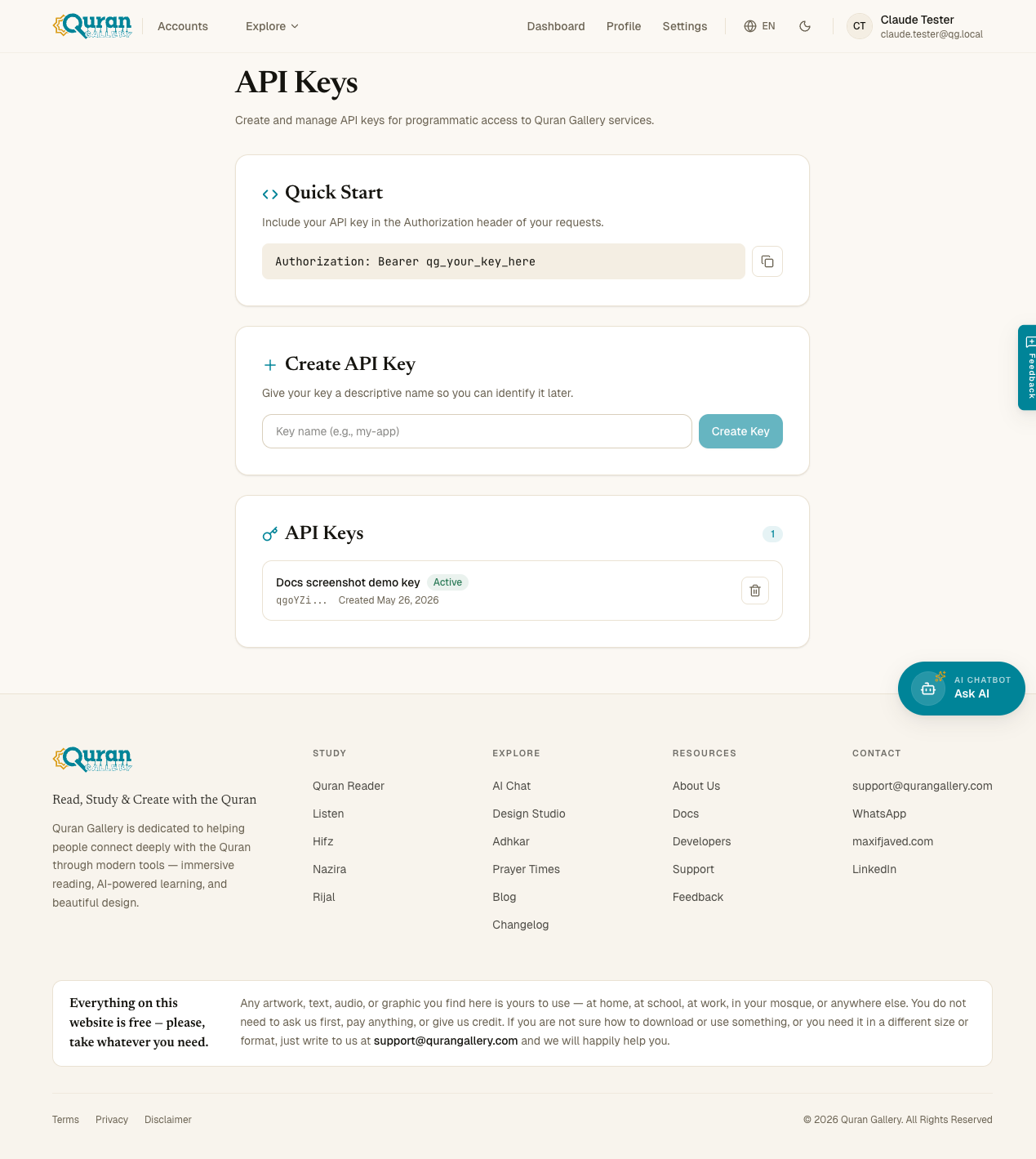
For each key:
- Name — what you typed when creating it.
- Status — Active (green pill) or Disabled (grey pill).
- Start — the first few characters of the key, like
qg_sk_ghj.... Enough to identify which key is which without exposing the secret. - Created — the date the key was generated.
To the right of each row, a trash icon deletes the key. Deletion is permanent, and it takes effect on the next request for most services.
One exception: the MCP server caches verified keys for up to 60 seconds, so that every tool call does not require a round trip back here. A key you just deleted may keep working there for up to a minute. If you are revoking a key because it leaked, delete it now and treat the following minute as still-exposed.
Using a key
Send it in the Authorization header on requests to any Quran Gallery API endpoint that accepts API key auth:
Authorization: Bearer qg_sk_ghjKm4x7pQ...The usage card on the Developers page shows the exact format to copy. The same key authenticates you across every Quran Gallery service that supports key auth — you don’t need a separate key per app.
API-key requests bypass the browser session, so you can use them from CI jobs, scheduled tasks, mobile apps, or anywhere you don’t have cookies.
The same key also authenticates the MCP server, which lets an AI assistant search the classical library and cite a real printed page.
Rate limits
Each API key is rate-limited at 60 requests per minute, sliding window. That’s plenty for personal use and most scripts. If you exceed it, the API returns HTTP 429 with headers indicating when you can retry. Wait, then resume.
API keys for banned or deleted accounts stop working immediately, just like sessions do.
Rotating keys
Best practice is to rotate keys whenever:
- A laptop or device with the key has been lost or sold.
- You’ve shared the key with a collaborator who no longer needs access.
- It’s been a long time and you’d rather not have an unrotated secret lying around.
Rotation is a two-step manual flow:
- Create a new key with a descriptive name (e.g. “Madrasah dashboard v2”).
- Update your scripts/apps to use the new key.
- Once everything is on the new key, delete the old one.
There’s no automated rotation feature today.
I lost my key
Quran Gallery cannot retrieve a lost key — only the hash is stored on our side after creation. Delete the old key from the list (so it stops working if someone else has it) and create a new one. Update your script to use the new value.
Security checklist
- Never commit a key to git. Use a
.envfile (and add it to.gitignore) or your platform’s secret manager. - Never paste a key into a public Slack, Discord, GitHub issue, or chat with an AI tool. Treat keys exactly like passwords.
- Use one key per project, not one key for everything. That way, when you wind a project down or share access with someone, you can delete that key without affecting the rest.
- If you suspect a key is compromised, delete it first, then create a new one. Order matters: if you create-then-delete, the attacker still has a working key during the gap. Note the up-to-60-second MCP cache above — deletion is not instant everywhere.
- Don’t bake keys into client-side code (JavaScript that runs in a user’s browser, mobile-app binaries). Anyone using your app could read them.
Common errors
| Error | Fix |
|---|---|
| 401 Unauthorized when calling the API | Your key was deleted, disabled, or never created. Make a new one. |
| 403 Account suspended | The account that owns the key is banned. See Banned accounts. |
| 429 Too Many Requests | You’ve hit the per-minute cap. Back off and retry. |
| “Failed to load API keys” on the page | A transient network error. Refresh. |