Sign in
Three ways to sign in to Quran Gallery — email and password, Google, or Quran.com.
On this page
The sign-in page is the front door for the whole Quran Gallery suite. Once you’re in, you’re in everywhere — there’s no separate login for the Quran reader, madrasah, or any other app.
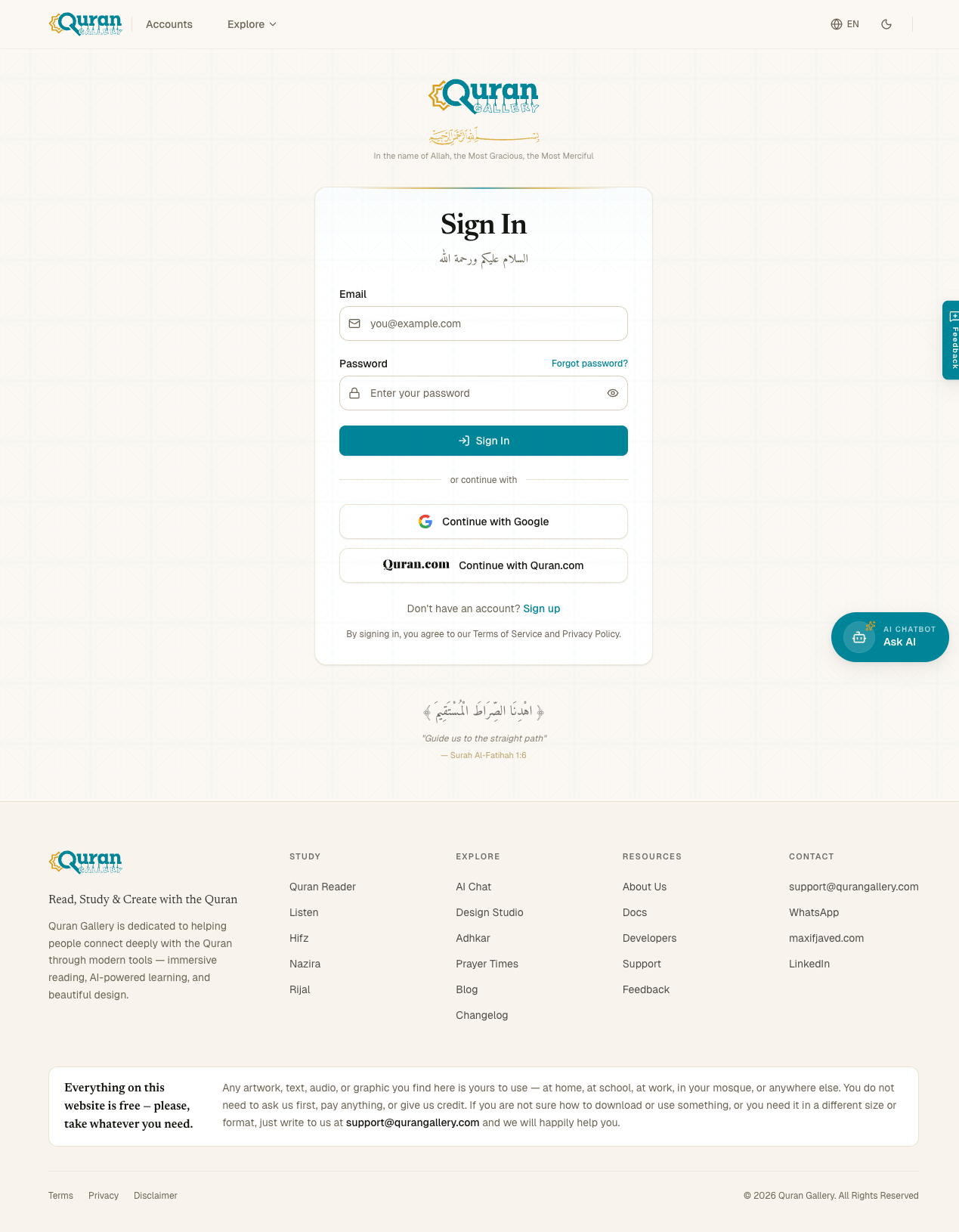
How to reach the sign-in page
Open accounts.qurangallery.com in any browser. Any app in the suite will also redirect you here if you try to use a feature that requires being signed in.
If a Quran Gallery app sent you to sign in, it adds a ?redirect=... parameter. After you successfully sign in, you’ll be taken back to whatever you were doing. If you typed the URL directly, you’ll land on your settings page after sign-in.
Method 1 — Email and password
- Type the email you registered with into the Email field.
- Type your password.
- Solve the “I’m not a robot” challenge if it appears (only on some networks).
- Click Sign In.
A few details that often catch people:
- Emails are case-insensitive and dot-insensitive for Gmail. Whether you signed up as
[email protected],[email protected], or[email protected], all three sign in to the same account. Quran Gallery treats them as one identity so you can’t accidentally create duplicates. - Passwords are case-sensitive and need at least 8 characters. There’s no maximum length cap that you’ll hit in practice.
- If you haven’t verified your email yet, signing in sends you to a “Check your inbox” page instead of letting you continue. Open the verification email and click the link, then come back.
- If you’ve enabled two-factor authentication, you’ll be asked for a 6-digit code after your password. See Two-factor authentication for details.
Method 2 — Continue with Google
Click Continue with Google, pick the Google account you want to use, and approve the access request. Google sends you back to Quran Gallery already signed in.
- If you’ve never signed in to Quran Gallery before, a new account is created automatically using your Google name, email, and profile photo. Your email is treated as already verified — you don’t have to click anything in your inbox.
- If you already have a Quran Gallery account with the same email, the Google sign-in attaches to that account. Both methods now work to sign you in.
- Different emails will not be merged. If your Google email differs from your existing Quran Gallery email, you’ll get a clear error rather than two accounts being silently combined.
Method 3 — Continue with Quran.com
Click Continue with Quran.com. You’ll be sent to login.quran.com to approve the connection, then bounced back to Quran Gallery.
Quran.com sign-in is useful if you already keep bookmarks, notes, collections, or memorisation goals there — Quran Gallery’s Quran reader can read from the same account so your data lines up across both services.
The first time you use it, Quran.com will ask for permission to share your name, email, bookmarks, notes, collections, reading sessions, preferences, goals, and read-only access to posts and comments. You can revoke this at any time from Settings → Login methods → Disconnect.
What happens if a sign-in fails
| You see | What it usually means |
|---|---|
| “Invalid email or password” | The email/password combination doesn’t match an account. Try Forgot password. |
| “Please verify your email” | The account exists but you haven’t clicked the verification link yet. See Email verification. |
| “Too many sign-in attempts. Try again in 5 minutes.” | You’ve hit the brute-force protection. Wait 5 minutes, or use Forgot password to recover. |
| “Account suspended” | The account has been disabled. See Banned accounts. |
| You’re sent to /2fa/verify | Your password worked — now enter a 6-digit code from your authenticator app. |
| You’re sent to /verify-email | Your password worked — now click the link in the verification email. |
Forgot your password?
Click Forgot password? above the password field. You’ll be taken to a page where you can enter your email address and receive a reset link — see Password reset.
Already signed in?
If you visit the sign-in page while a valid session already exists in your browser (for example, you signed in earlier on another tab), Quran Gallery detects that and silently redirects you onward. You don’t need to sign in twice.
Staying signed in
By default, your session stays valid for 30 days, even if you close the browser. You can sign out manually from the menu at the top right of any Quran Gallery app, or from Settings → Active sessions if you want to sign out from a different device — see Active sessions.