Connect Claude to the Islamic library (MCP)
Add the Quran Gallery MCP server to Claude (claude.ai and Desktop) as a custom connector, with screenshots. No account or key, 8,594 Arabic works.
On this page
No account, no sign-in, no key. In Claude, add one custom connector with this URL:
https://qurangallery.com/mcp/shamelaThe steps are the same on claude.ai and in Claude Desktop. Free plans can add one custom connector. On Team and Enterprise plans, an Owner adds it under Organization settings → Connectors and each member then switches it on.
1. Open Connectors and add a custom connector
Open Settings → Connectors (claude.ai/settings/connectors). Some versions put it under Customize → Connectors. Click + Add, then Add custom connector.

2. Name it and paste the URL
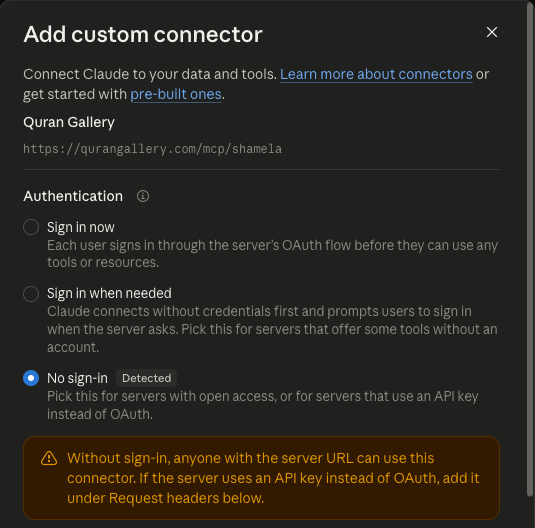
Name it Quran Gallery, paste https://qurangallery.com/mcp/shamela, and click Continue.

3. Keep No sign-in, then add and connect
Claude checks the server and selects No sign-in, marked Detected. Leave it selected. You can ignore the Request headers section unless you have a key (see the end of this page). Click Add, then Connect. A message confirms Connected to Quran Gallery.
4. Choose when Claude may use the tools
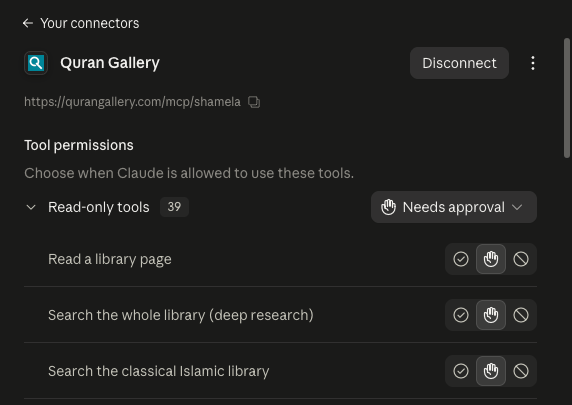
The connector page lists 15 read-only tools, set to Needs approval by default. Leave that to approve each call, or set Read-only tools to Always allow to skip the prompts.
5. Switch it on in a chat
In a chat, click +, open Connectors, and switch Quran Gallery on.

6. Ask, and approve the first call
When Claude first uses a tool, it asks. Click Allow once, or Always allow for that tool.

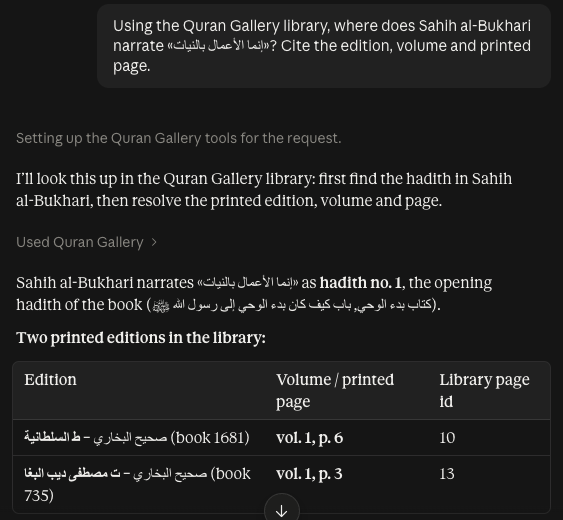
The answer names each printed edition with its volume and page:
First prompt to try
Find the hadith «إنما الأعمال بالنيات» in the primary collections and tell me which book, edition, volume and page it is printed on. Quote the Arabic exactly.
Your assistant should call shamela_search_library (or search then fetch). The hits include صحيح البخاري, ط السلطانية, page 1/6, with a link to that page in the Maktabah reader. If it answers from memory instead, say: “Use the Quran Gallery library tool and quote what it returns.”
Search queries must be in Arabic; your assistant translates English terms first (details). Ready-made prompts for takhrīj, citing a passage and comparing tafsir are listed in the full tool surface.
Troubleshooting
- 429, “Keyless limit reached”. Keyless use allows 10 tool calls a minute and 200 a day per IP address. Wait for the
Retry-Afterheader, or add a free key (below). See Limits and errors. - 503. The server or the library behind it is briefly unavailable. Retry after the
Retry-Afterheader. If the connector lists zero tools, wait a minute and refresh the tool list. - The tools do not appear, or a tool you expect is missing. On the connector page, open the ⋮ menu and choose Refresh tools list, then start a new chat.
- Claude answers without the library. Check that the connector is switched on for this chat (step 5), and ask it to use the Quran Gallery tools.
- Connection fails immediately. The endpoint is
/mcp/shamela. The bare/mcpis a web page, not the server.
Optional: a free key for higher limits
A key is never required. A free key raises the limit to 60 calls a minute and lifts the keyless page-range caps. Create one on the Developers page of your Quran Gallery account (how keys work).
Add the key at step 3. Keep No sign-in selected, and under Request headers add a header named Authorization with the value Bearer qg_sk_your_key_here. Use your own key in place of the placeholder. If the connector already exists, remove it from the ⋮ menu and add it again with the header.