Preferences (theme, language, notifications)
Set your default theme, language, and notifications — once, and your choice follows you across every Quran Gallery app.
On this page
Preferences are small settings that follow your account around the whole Quran Gallery suite. Change them once on the accounts page and the Quran reader, madrasah, prayer times, AI chat, and every other app picks up the same value.
Theme
Quran Gallery supports a light, dark, and system theme.
- Light — bright background, dark text.
- Dark — dark background, light text. Easier on the eyes at night and saves battery on OLED screens.
- System — follows your device’s setting. If you’ve told your OS to switch to dark at sunset, Quran Gallery follows along automatically.
You can toggle the theme from the sun/moon icon in the topbar of any app, or set it explicitly from your account: the choice is the same setting in both places.
The chosen theme persists for your account, not just the device. Sign in on a new browser and your theme follows you.
Language
Quran Gallery is fully translated into seven languages — about 280 message keys each. The supported set is:
| Code | Language | Direction |
|---|---|---|
en | English | Left-to-right |
ar | Arabic (العربية) | Right-to-left |
ur | Urdu (اردو) | Right-to-left |
id | Indonesian (Bahasa) | Left-to-right |
tr | Turkish (Türkçe) | Left-to-right |
bn | Bengali (বাংলা) | Left-to-right |
fr | French (Français) | Left-to-right |
For Arabic and Urdu, the entire UI flips to right-to-left automatically — text alignment, icons, menus, slide-in panels, breadcrumbs, everything.
Where to change it
Topbar language switcher — click the language code (e.g.
EN) in the topbar and pick a new language. The page reloads in the new language immediately.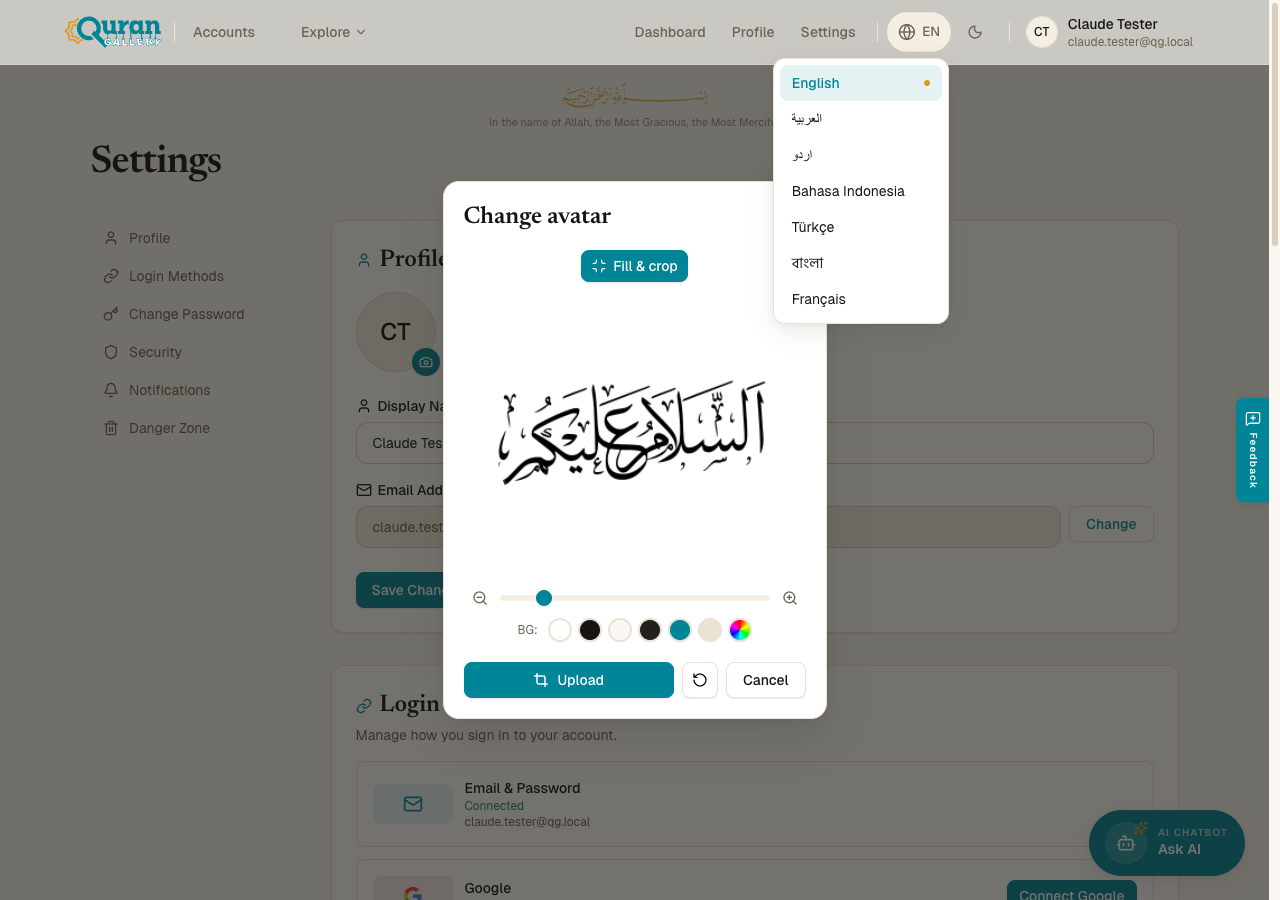
The URL prefix — Quran Gallery uses path-based locale routing. English lives at the bare path (
/settings); other locales add a prefix (/ar/settings,/ur/settings, etc.). You can bookmark any of them.
The choice is saved to your account and used as the default on any device where you sign in. See Languages and regions for more.
Notifications
The Notifications toggle controls whether Quran Gallery may send you product notifications — news about updates and new features across the suite.
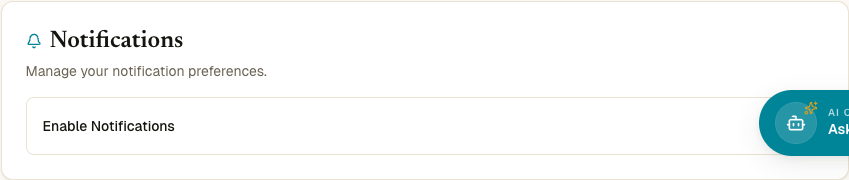
- On (default) — you’ll receive occasional notifications about updates and new features.
- Off — Quran Gallery won’t push notifications to you.
This is a single account-wide on/off. Individual apps may have their own finer-grained controls — for example, the prayer app has its own prayer-time notifications with per-prayer toggles and reminder timing. Those app-specific settings are separate from this master switch.
Security-critical email (verification links, password resets, 2FA codes, email-change confirmations) is always sent regardless of this setting. There’s no way to opt out of those, because losing them means losing your account.
Where preferences live in the suite
Preferences are queried by other Quran Gallery apps when they want to know what theme or language to render in. So:
- The Quran reader picks up your language from your account on first load.
- The AI chat uses your theme so it doesn’t flash white when you switch to it.
- The prayer times app uses your language for day names and prayer labels.
- The Madrasah app respects your notification preference for review reminders.
Changing a preference here propagates to everything within a minute or two; reload any app for an instant update.
Resetting preferences
There’s no explicit reset button. The defaults are:
- Theme: System
- Language: English (or your account’s first detected language at signup)
- Notifications: On
Set each control back to those values manually if you want to return to defaults.