Connected accounts (Google, Quran.com)
Link Google or Quran.com to your Quran Gallery account so you can sign in with any of them, and disconnect when you want to.
On this page
The Login methods card in your settings lets you mix and match the ways you sign in. You can have any combination of three:
- Email & Password — your password-based login.
- Google — sign in with your Google account.
- Quran.com — sign in with your Quran.com account.
Connecting more than one is a good idea. It gives you a backup if one provider has an outage, and it’s the only way to keep using one specific method while removing another safely.
How the Login methods card looks
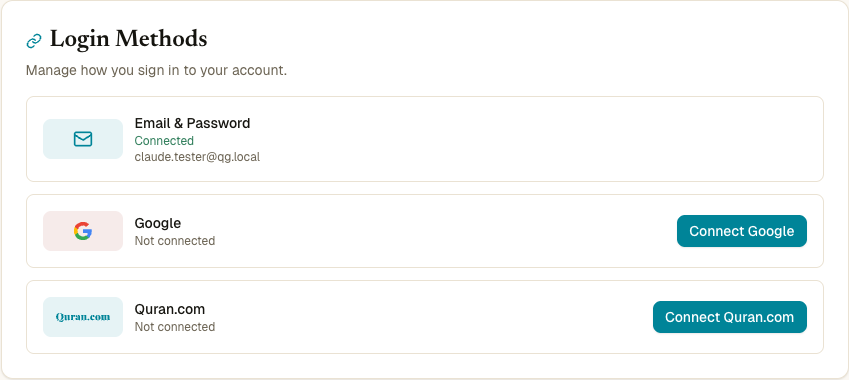
After you sign in, open Settings. The Login methods card lists all three providers stacked vertically. Each row shows whether it’s currently Connected or Not connected, and which email or account ID is on file.
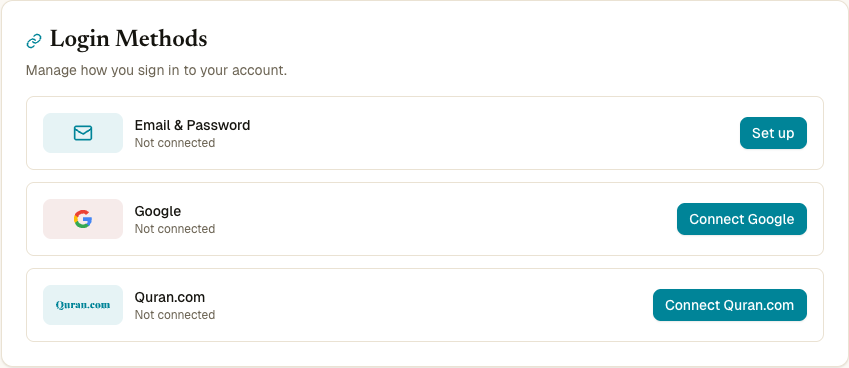
A signed-in OAuth-only account (no password set) shows the same card with the Email & Password row marked Not connected and a Set up button — that’s the path documented in Set a password:
Buttons on each row let you:
- Set up / Connect — start the provider’s sign-in flow and attach it to your account.
- Change — disconnect and immediately re-connect (used when you want to switch which Google or Quran.com account is attached).
- Disconnect (the unlink icon) — remove the provider from your account.
Connecting Google
- Settings → Login methods → Google → Connect Google.
- A Google sign-in window opens. Pick the account you want to attach and approve the access.
- You’re returned to Settings. The Google row now shows Connected with the account’s email.
Quran Gallery will accept future Continue with Google sign-ins for this account.
The Google account’s email must match your Quran Gallery account email. If you pick a Google account with a different email, the connect attempt is rejected to prevent silent identity merging. To use a different Google email, change your Quran Gallery email first (see Profile), then connect.
Connecting Quran.com
- Settings → Login methods → Quran.com → Connect Quran.com.
- The Quran.com sign-in page opens. Sign in and approve the access request.
- You’re returned to Settings. The Quran.com row now shows Connected.
The first time you connect, Quran.com will ask permission to share your name, email, bookmarks, notes, collections, reading sessions, preferences, goals, and read-only access to posts and comments. Approving these is what lets the Quran Gallery reader sync data with your Quran.com account.
If you connect later (after Quran.com adds new permissions), you may be prompted to re-authorise. The page /link/qurancom handles this bridge — you usually won’t see it directly.
Changing a connected provider
To switch from one Google account to another (or one Quran.com account to another) without temporarily disconnecting:
- Settings → Login methods → Google (or Quran.com) → Change.
- The current connection is removed, then the provider’s sign-in page opens immediately so you can pick a different account.
This is shorter than disconnect → reconnect but does the same two things. You’ll need to have at least one other login method connected (Password or the other provider), otherwise the change is rejected to stop you locking yourself out.
Disconnecting a provider
- Settings → Login methods → Google (or Quran.com).
- Click the unlink icon to the right of Change.
- A confirm/cancel prompt appears. Click Disconnect.
After disconnect, Continue with [provider] will no longer sign you in to this account. Your data is untouched — only the link from this third-party identity to your Quran Gallery account is removed.
The last-method rule
You cannot disconnect your only login method. If Google is the only thing connected, the Disconnect button is disabled with a tooltip telling you to set up another method first.
Why? Without any connected method, you’d have no way to sign in next time. The same rule applies if you’ve only connected Quran.com, or only have a password. There must always be at least one way to get back in.
What happens to my data when I disconnect?
Disconnecting Google or Quran.com:
- Does not delete your Quran Gallery account.
- Does not delete your name, avatar, email, preferences, bookmarks, notes, hifz progress, listening history, or anything else.
- Does not affect your active sessions — you stay signed in everywhere you currently are.
- Does remove the access token Quran Gallery had for that provider. After disconnecting Quran.com, the Quran reader can no longer read/write bookmarks and notes against your Quran.com account until you reconnect.
If you want to fully wipe your account, see Delete your account.
Common errors
| Error | What it means |
|---|---|
| “Account already linked to a different user” | The Google or Quran.com account is connected to a different Quran Gallery account. Sign out of that one first. |
| “Different emails not allowed” | The provider’s email doesn’t match your Quran Gallery email. Change one or the other to match. |
| “You can’t disconnect your only login method” | Set up another login method first, then come back to disconnect this one. |
| “Could not start the connection” | The connect popup was blocked, or the network call timed out. Re-try. |